
Review Summary
ClickUp passed every step of our project-management test on the free plan: all the views, a working automation, dependencies, recurring tasks, a 500-row import and an AI that got the facts right and asked before changing anything. It is heavy, though: the Windows app needs about 14 seconds and up to 2 GB of memory, and the import and setup make you do more by hand than they should.
+ What works
- Every view we needed is free: list, board, calendar and Gantt, with no upgrade prompt
- Automation, dependency and recurring task all worked on the free plan
- Pasting a multi-line list creates one task per line
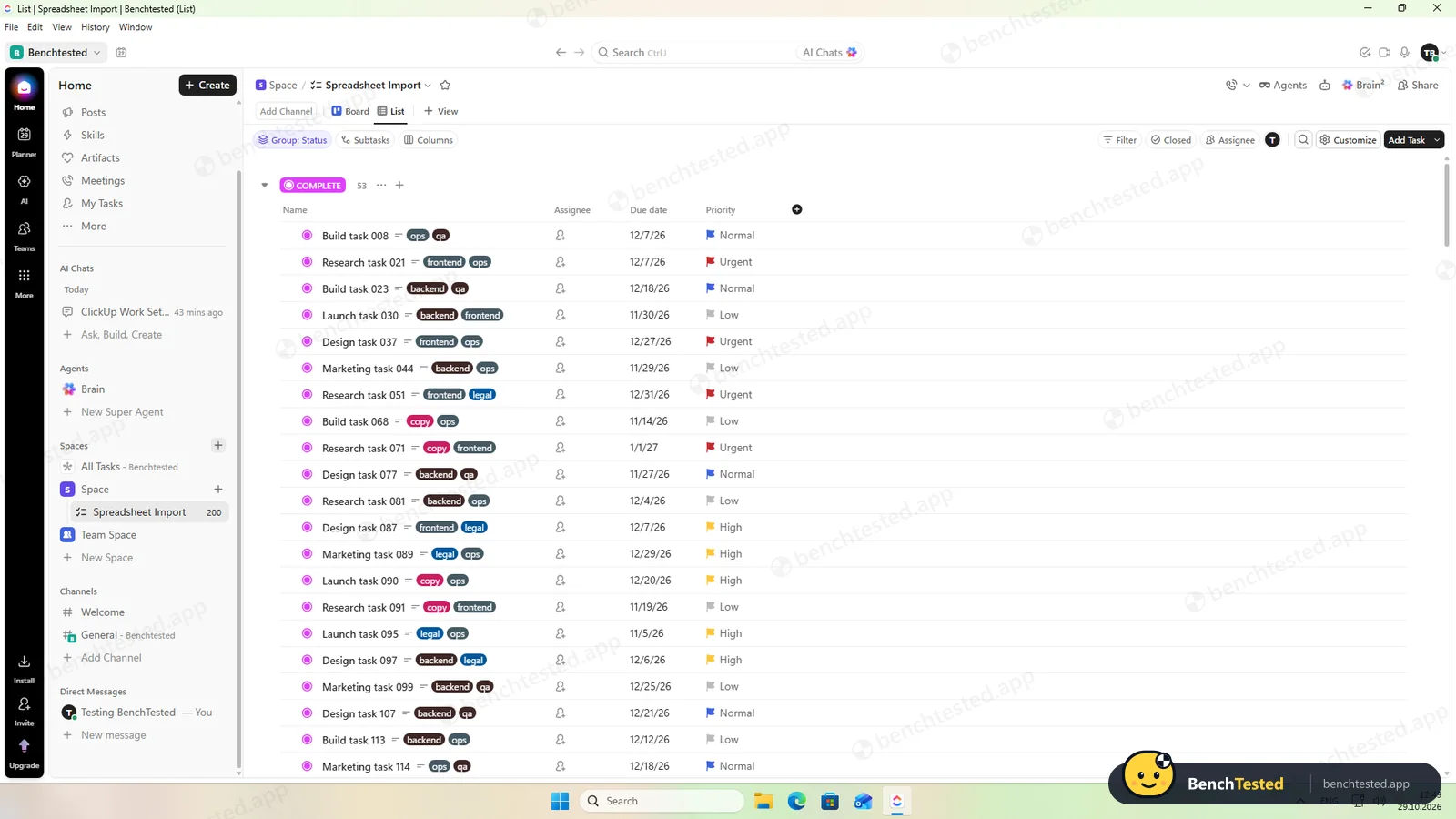
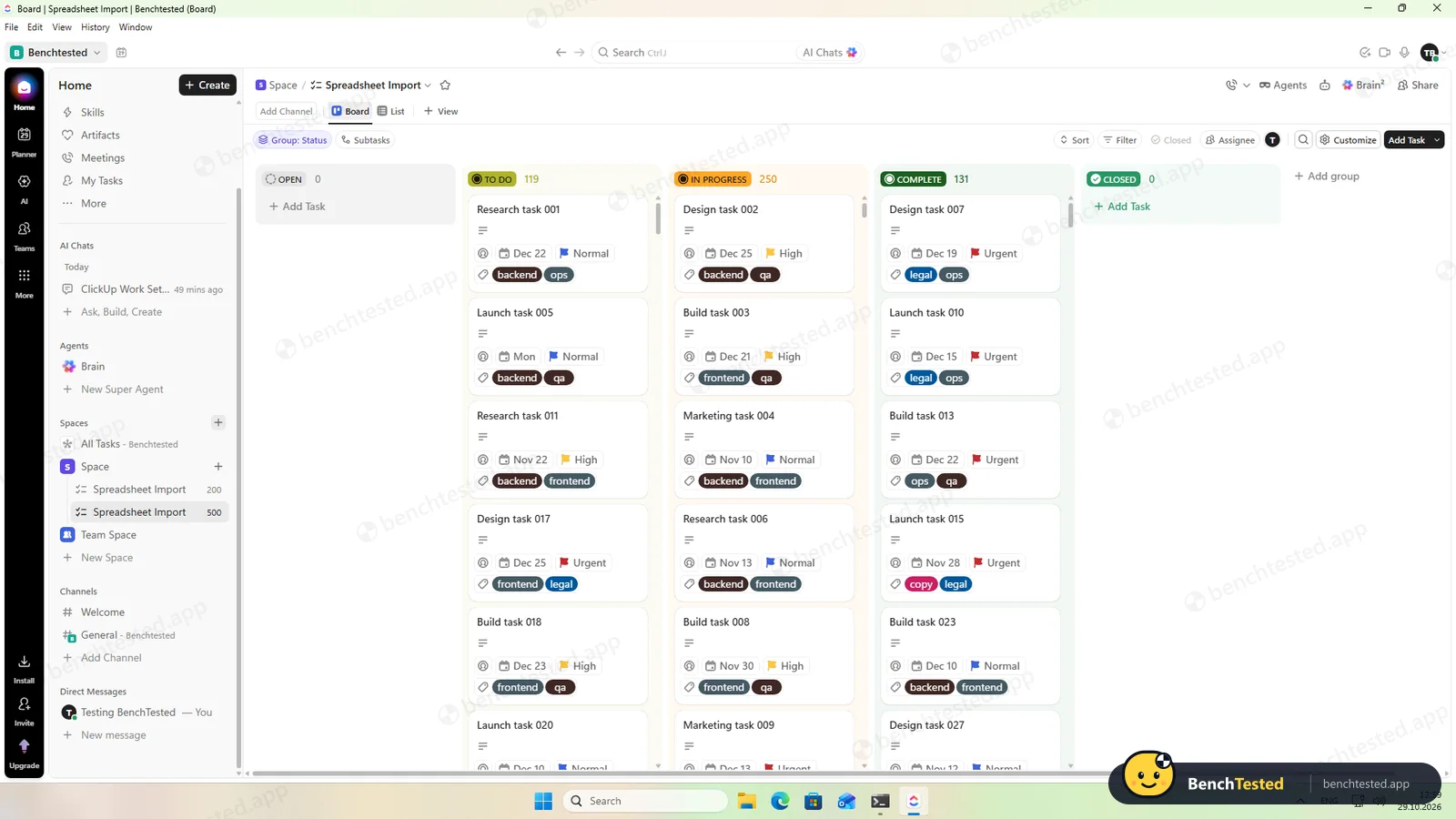
- 500-row CSV import in under two minutes, and the 500-task board opened in under a second
- Brain² summarised our project accurately, answered “what is overdue?” correctly and asked before adding subtasks
- Full CSV export in under a minute: all 771 tasks, with comments and subtasks
- Removing someone's access took effect immediately
− What falls short
- Heavy: about 14 seconds from launch to a usable list and 1.7–2.2 GB of memory
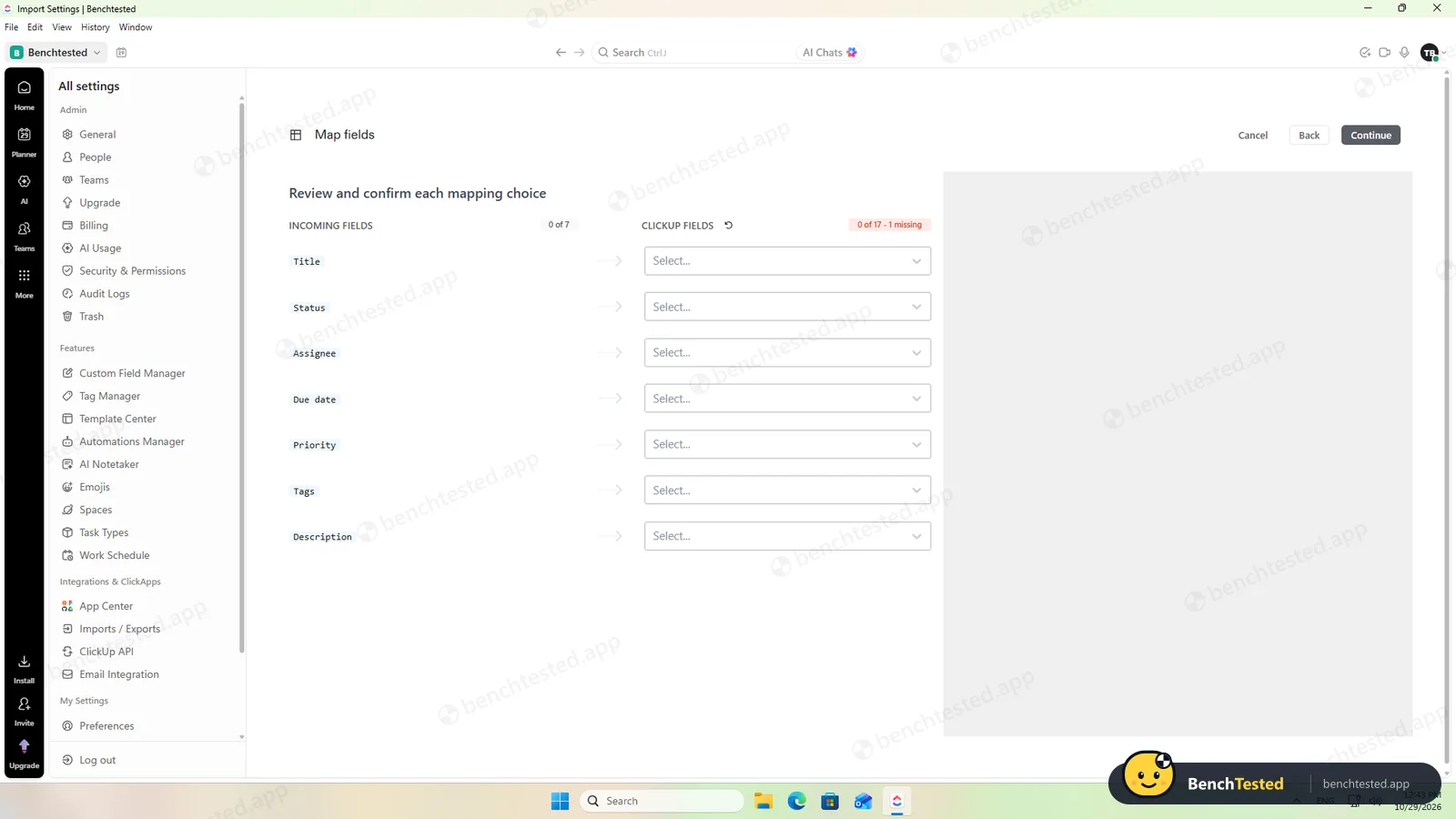
- The CSV import matched none of our seven columns automatically and needed status values mapped by hand
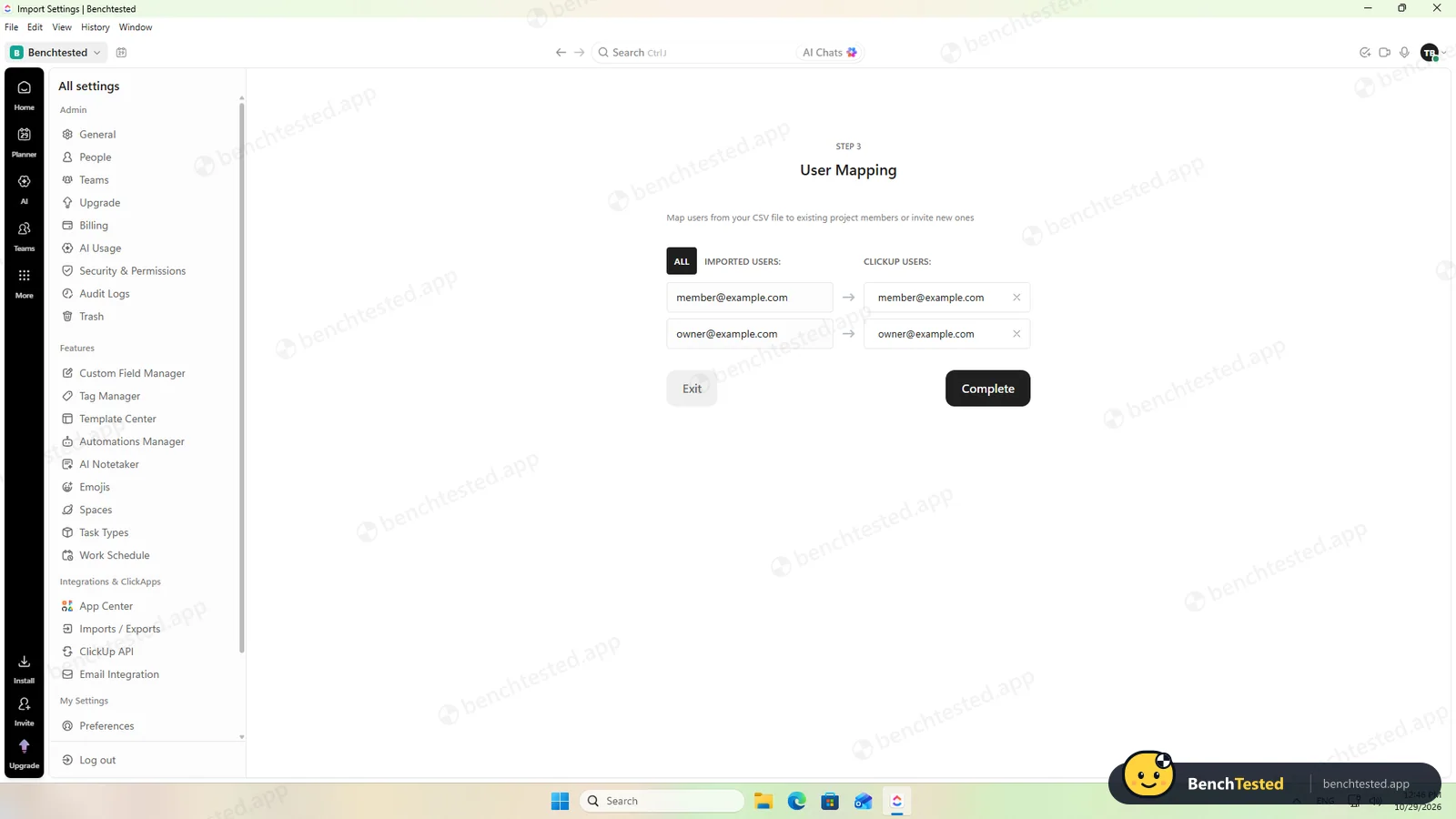
- The import offers to invite everyone whose email is in the file
- Starts with Windows by default and leaves about 275 MB and a broken startup entry after uninstalling
- Free AI chat is a one-off trial that does not reset
- The export drops dependencies and recurrence settings
- Busy setup: nine onboarding screens, a phone-number request, an invite nudge and an AI pop-up for every new list
ClickUp Alternatives
Not sure ClickUp is the right fit? These project management tools scored best on the same test script:

What is ClickUp?
ClickUp brings task management, documents, team chat, whiteboards and dashboards into one workspace. Tasks carry fields such as priority, assignee and status and can be shown in list, board, Gantt, calendar and other views.
Its AI layer, ClickUp Brain, searches across tasks, docs and conversations to answer questions and act on work, and AI agents can run workflows. Time tracking, sprints, automations and scheduling are also built in.
Why ClickUp is different
ClickUp puts far more into its free plan than most rivals: unlimited tasks and members, Gantt and calendar views, automations and AI, with limits on storage and automation runs rather than on features.
It aims to replace several tools at once, so the interface is busy: AI suggestions, channels, docs and agents sit next to the task lists.
Who is ClickUp for?
Small teams that want lists, boards, Gantt charts, automations and AI in one free workspace and do not mind a busy, heavy app. Teams that want to replace several separate tools for tasks, docs and chat with a single workspace.
Skip it if
- You want a light, quick app for a simple to-do list
- You need to move projects to another tool with their dependencies intact
- You rely on AI chat every day and do not want to pay
Our Experience with ClickUp
Test log
Windows 11 Pro 10.0.26300 in VMware Workstation 26H1 (4 vCPU, 8 GB RAM, no GPU passthrough), English (US) UI, 1920×1080, clean snapshot; new account on the Free Forever plan, second test account for the permission checks
- 11:59
Downloaded the Windows app from clickup.com
150 MB, signed by ClickUp (Mango Technologies, Inc.)
- 11:59:32
Ran the installer
installed in 45 s with no questions and added itself to Windows startup
- 12:00
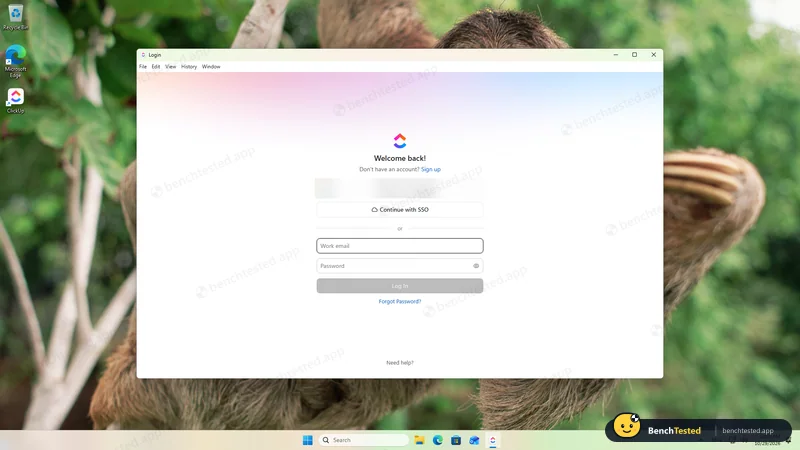
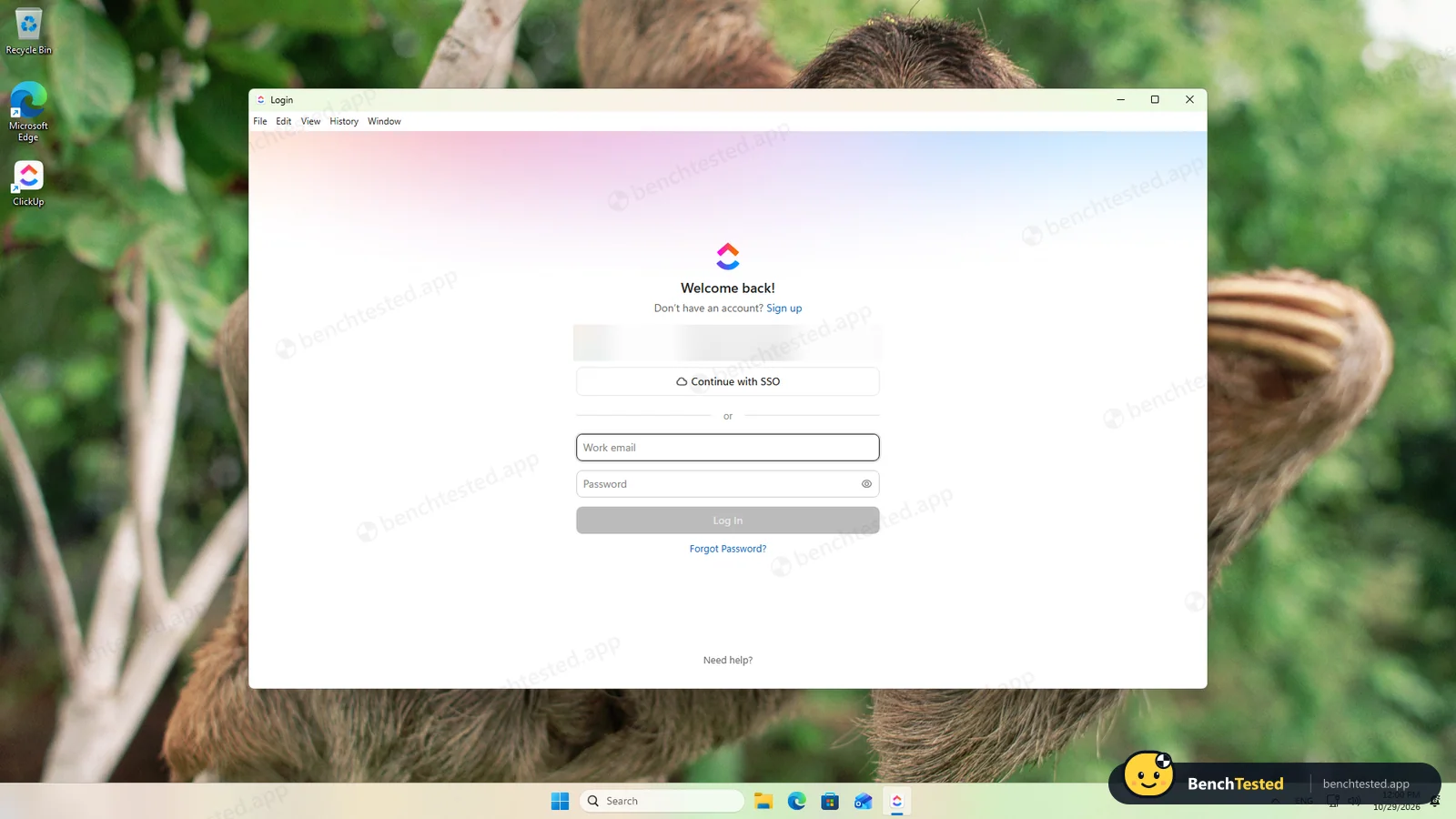
First launch: sign-in window
an account is required
- 12:02
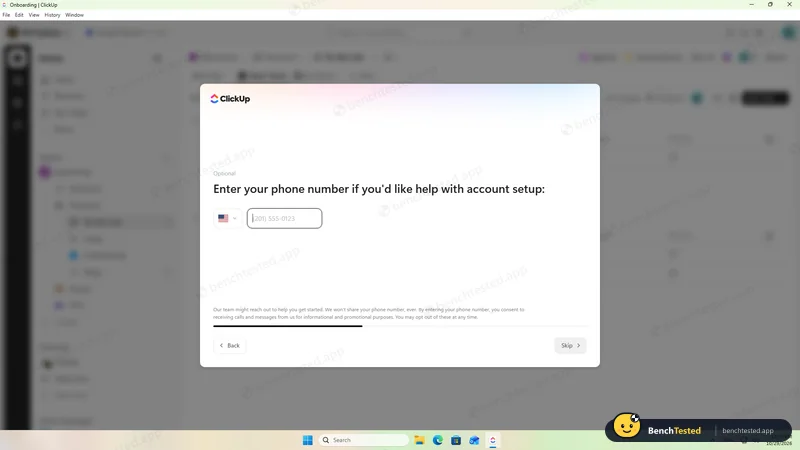
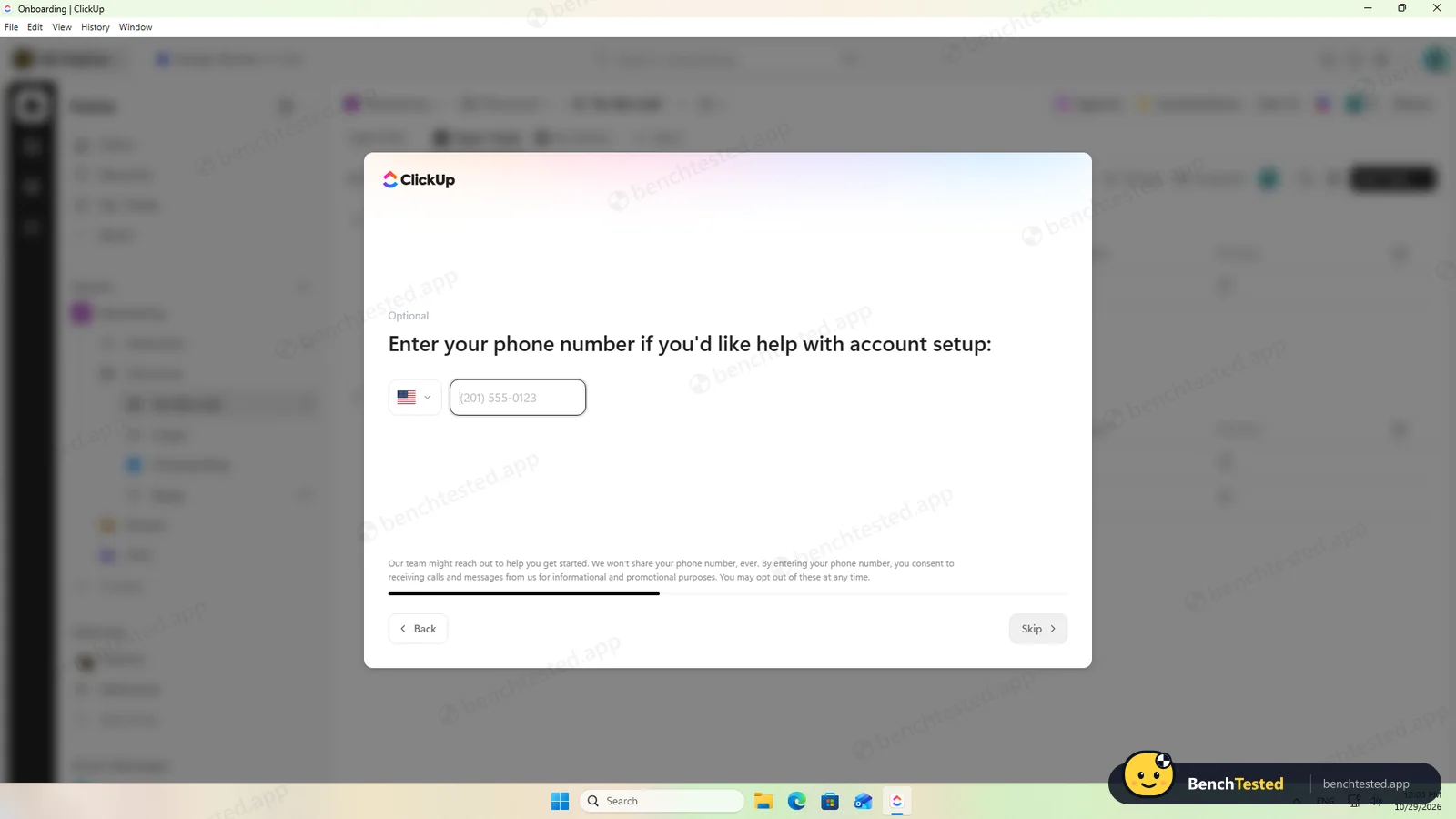
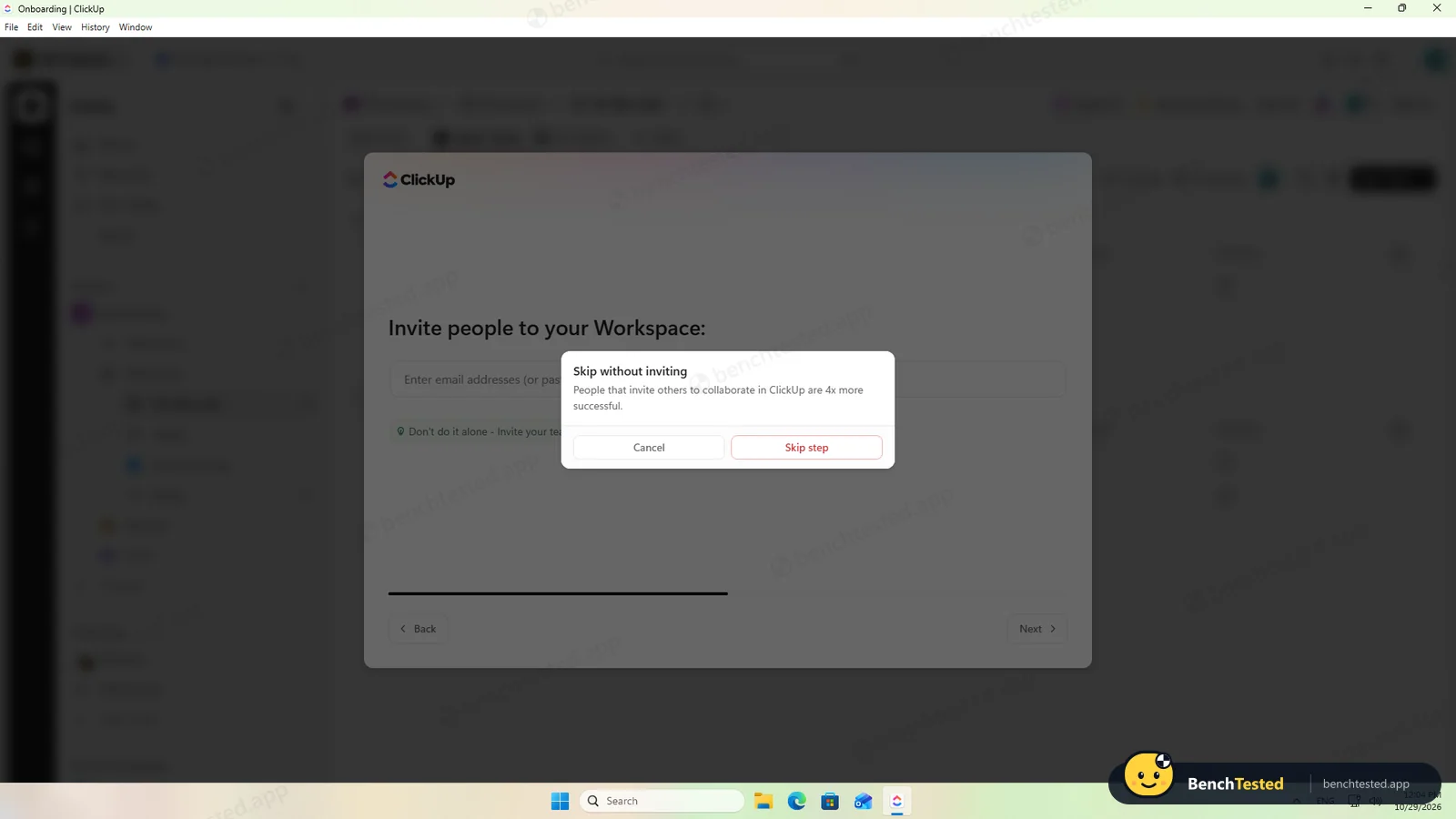
Onboarding, nine screens
optional phone number for promotional calls, invite nudge
- 12:07
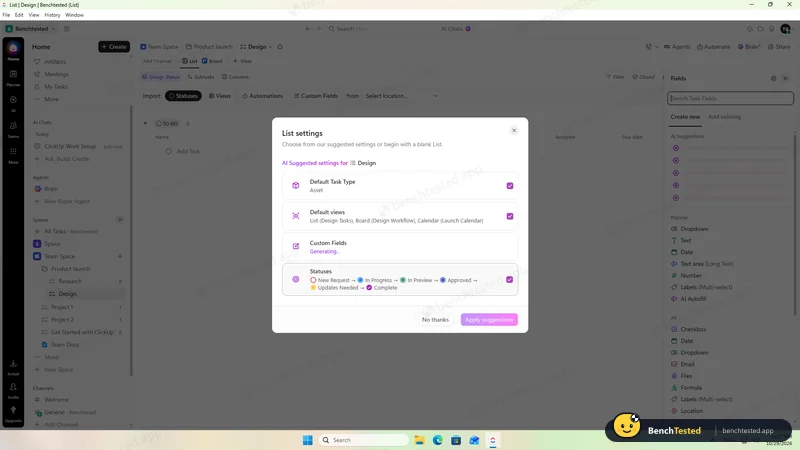
P1: started the 40-task project
bulk paste created eight tasks per list
- 12:29
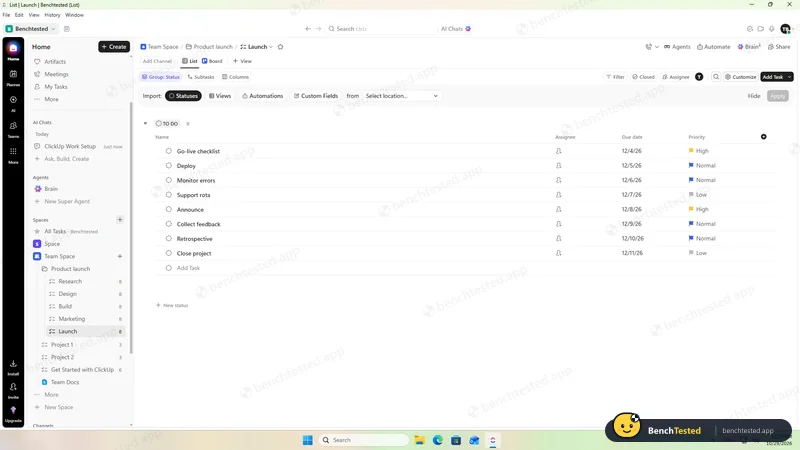
P1 done
5 lists, 40 tasks, all dates and priorities checked
- 12:31
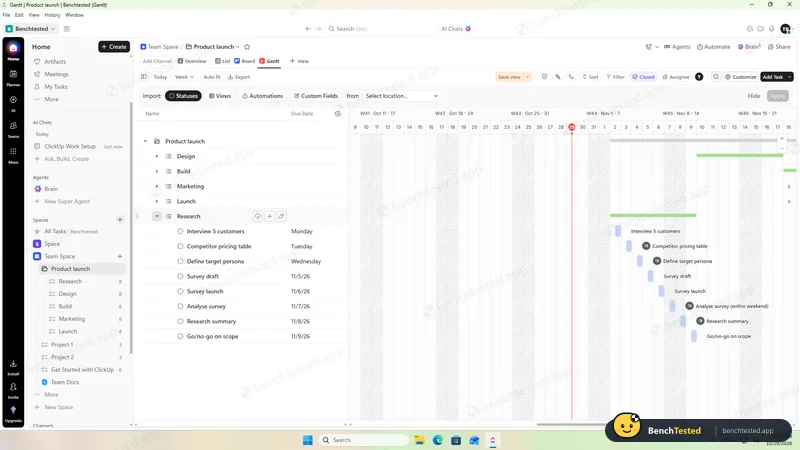
P2: list, board, calendar and Gantt
all free
- 12:34
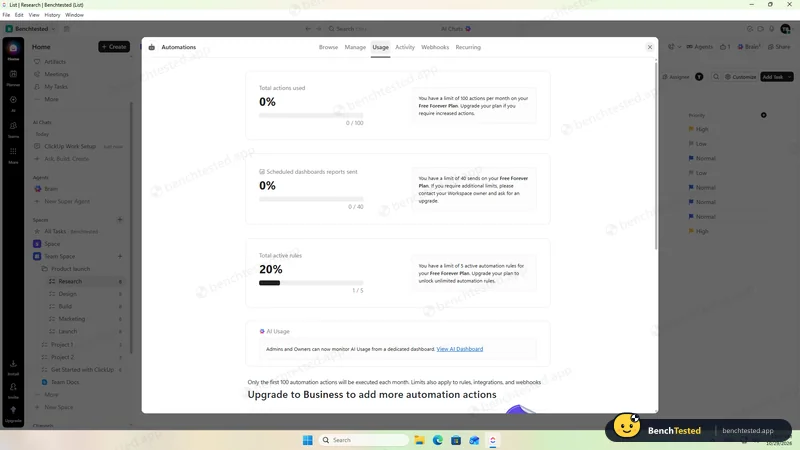
P3: automation fired
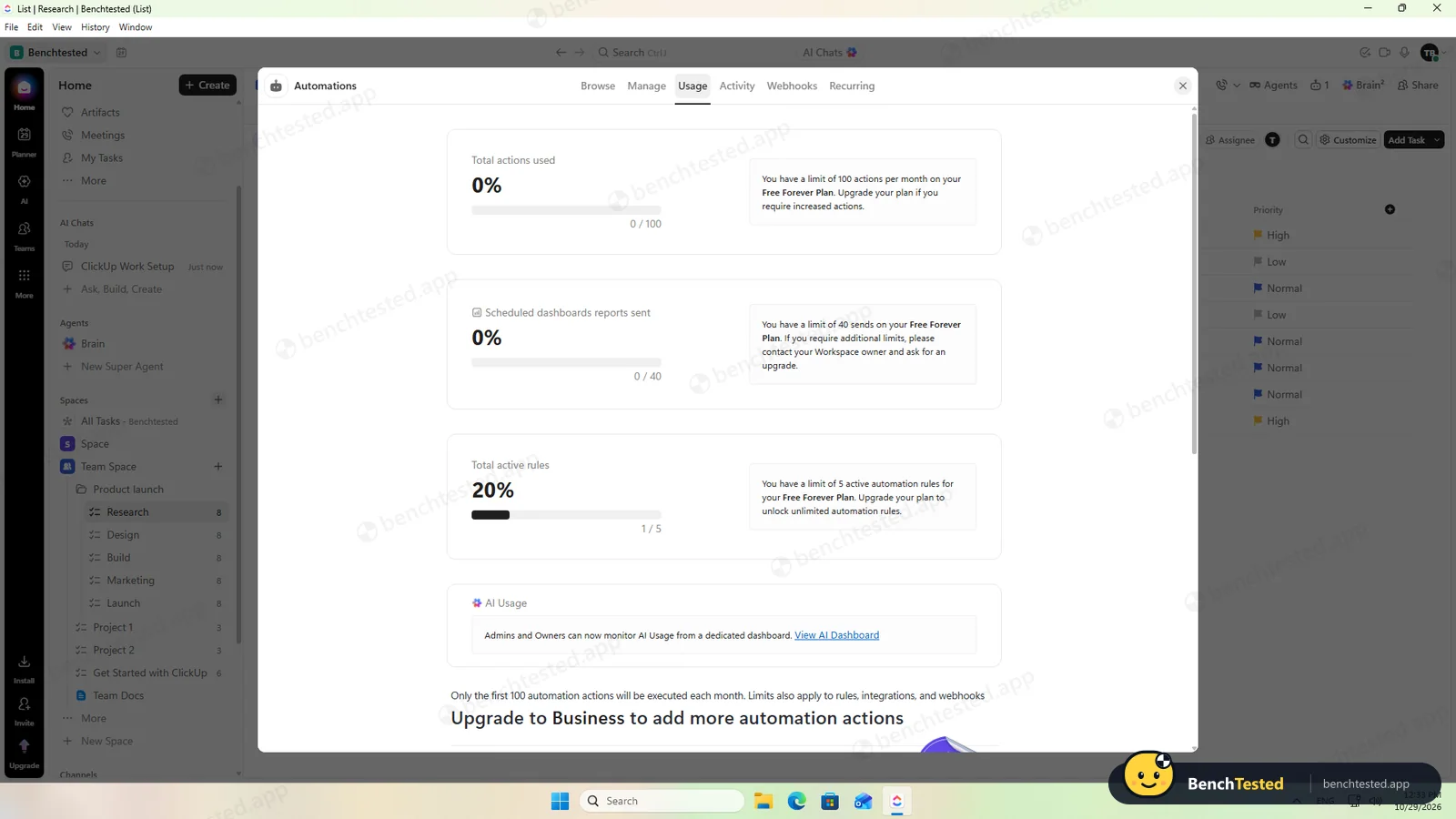
within 15 s; 100 actions a month on Free
- 12:37
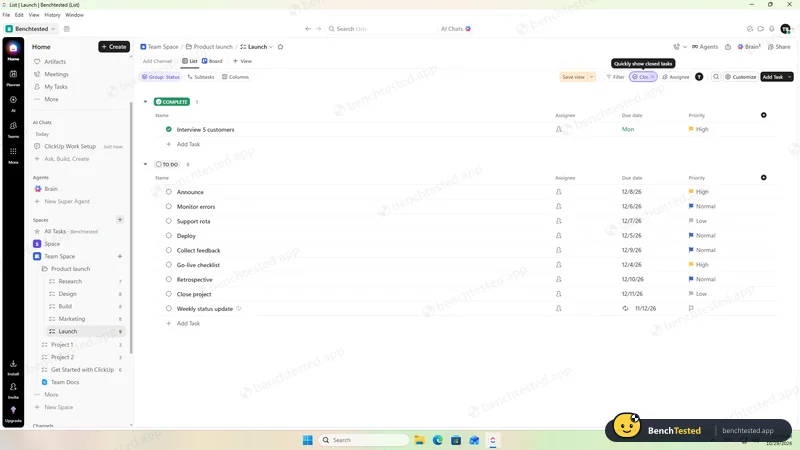
P3: recurring task completed
it came back for next week, and the automation moved it too
- 12:40
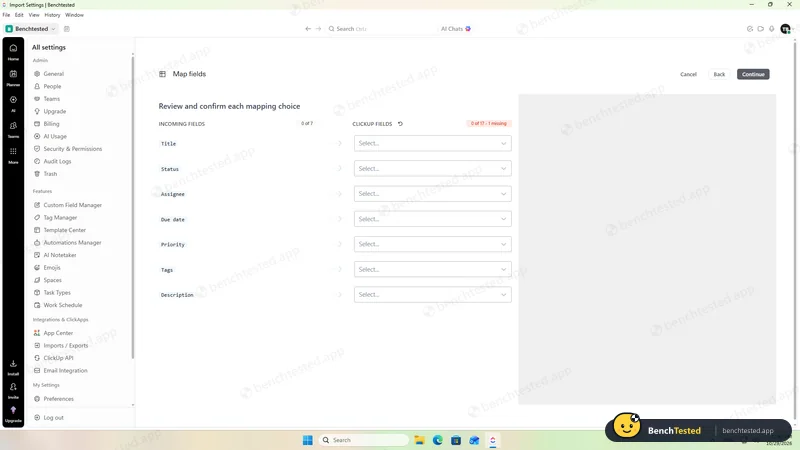
P4: CSV field mapping
0 of 7 columns matched automatically
- 12:49
P4: 200 rows imported
special characters intact; Review status mapped by hand
- 12:55
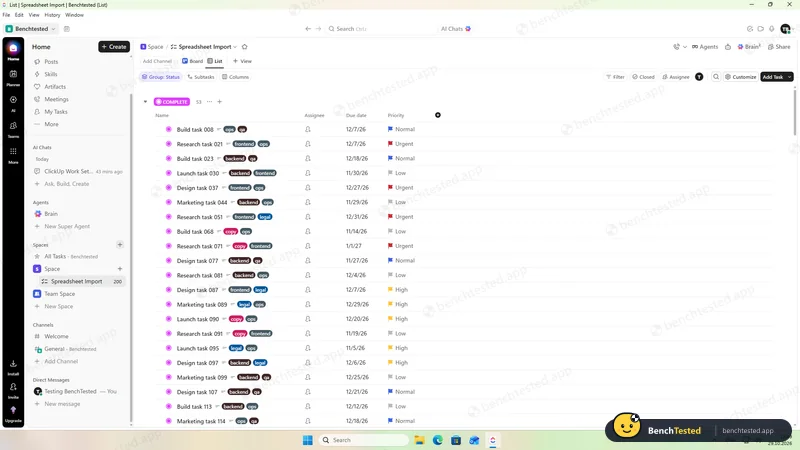
P5: 500 rows imported
under 2 minutes; board in 0.7 s
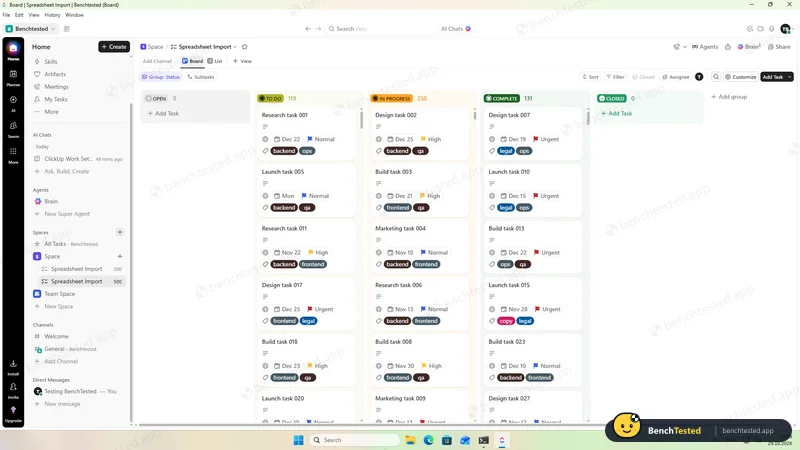
- 12:57
Cold start measured twice
window in 1.4–1.7 s, usable after about 14 s
- 17:44
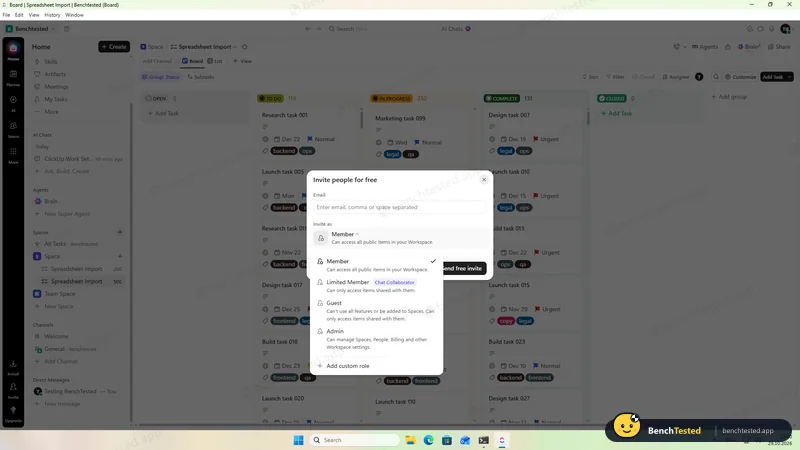
P6: invited a second user as Member
- 18:59
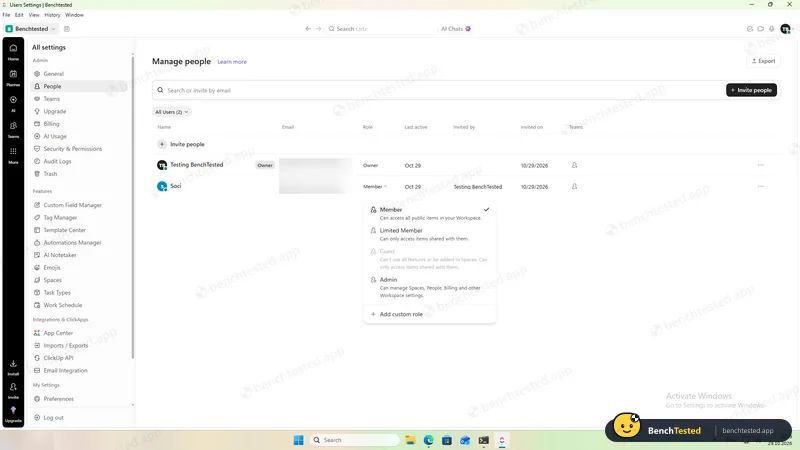
P6: tried to change the Member to Guest
not possible for an existing member
- 19:00
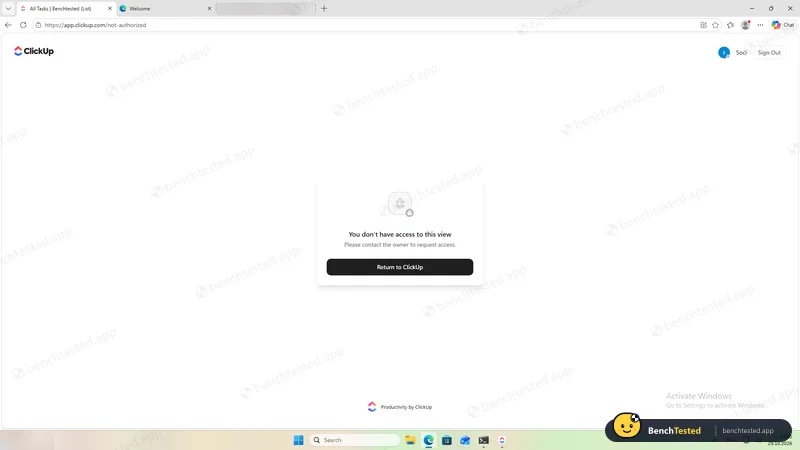
P6: Limited Member lost access on reload
- 19:03
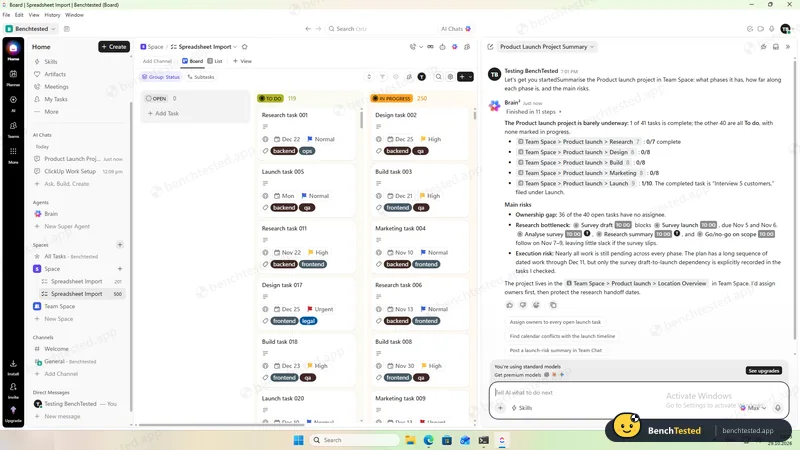
P7: AI project summary
accurate, in about 1.5 minutes
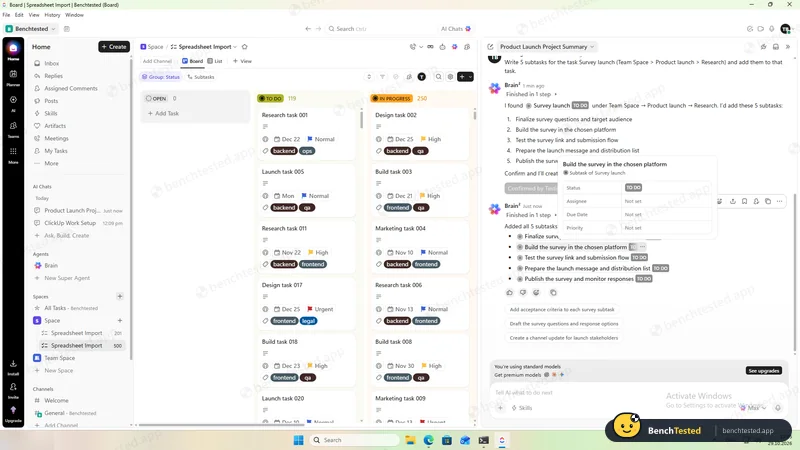
- 19:05
P7: AI subtasks added after confirmation
- 19:10
P8: CSV export downloaded
771 of 771 tasks; no dependencies or recurrence
- 19:13
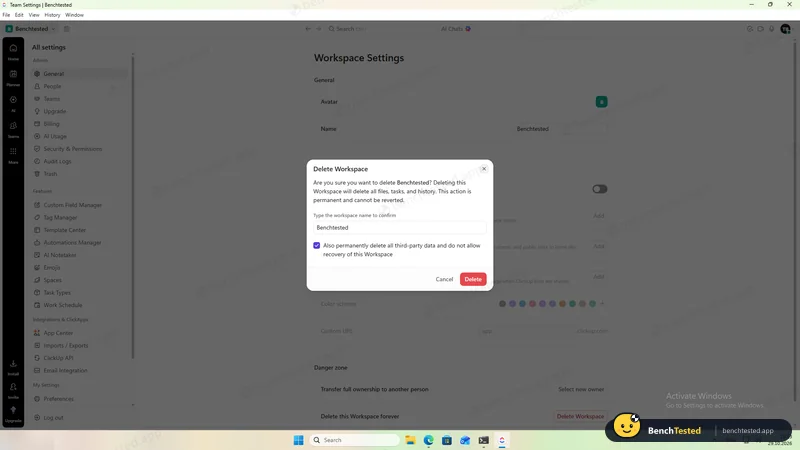
P8: workspace deleted
- 19:16
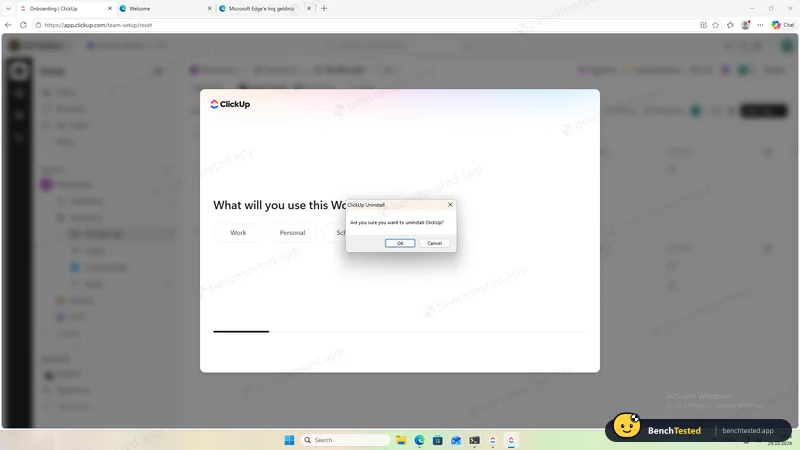
Uninstalled
about 275 MB and a startup entry left
-
P1 · Build a project
Build a 40-task product launch project from a written brief: five phase lists of eight tasks, each with a due date and priority.
Pass ≈ 200 actions
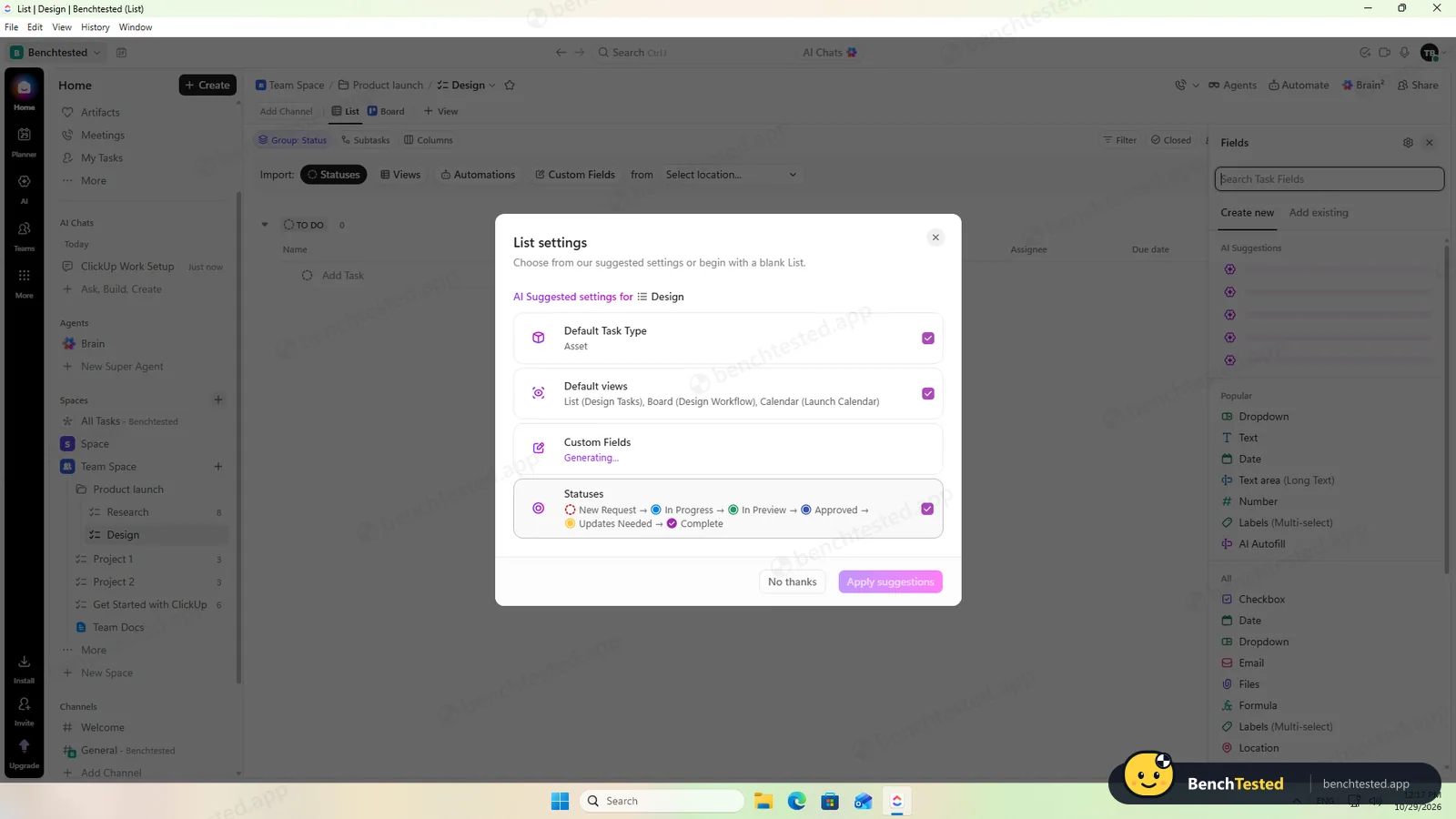
Pasting eight lines into Add Task offers “Create 8 tasks”, which saved most of the typing. Dates can be typed. Each new list opened an AI settings suggestion, and the priority menu's search box matched “Personal Priorities” and assigned the task to us when we typed “Normal”.
-
P2 · Views
Show the project as a list, board, calendar and Gantt chart.
Pass ≈ 2 min
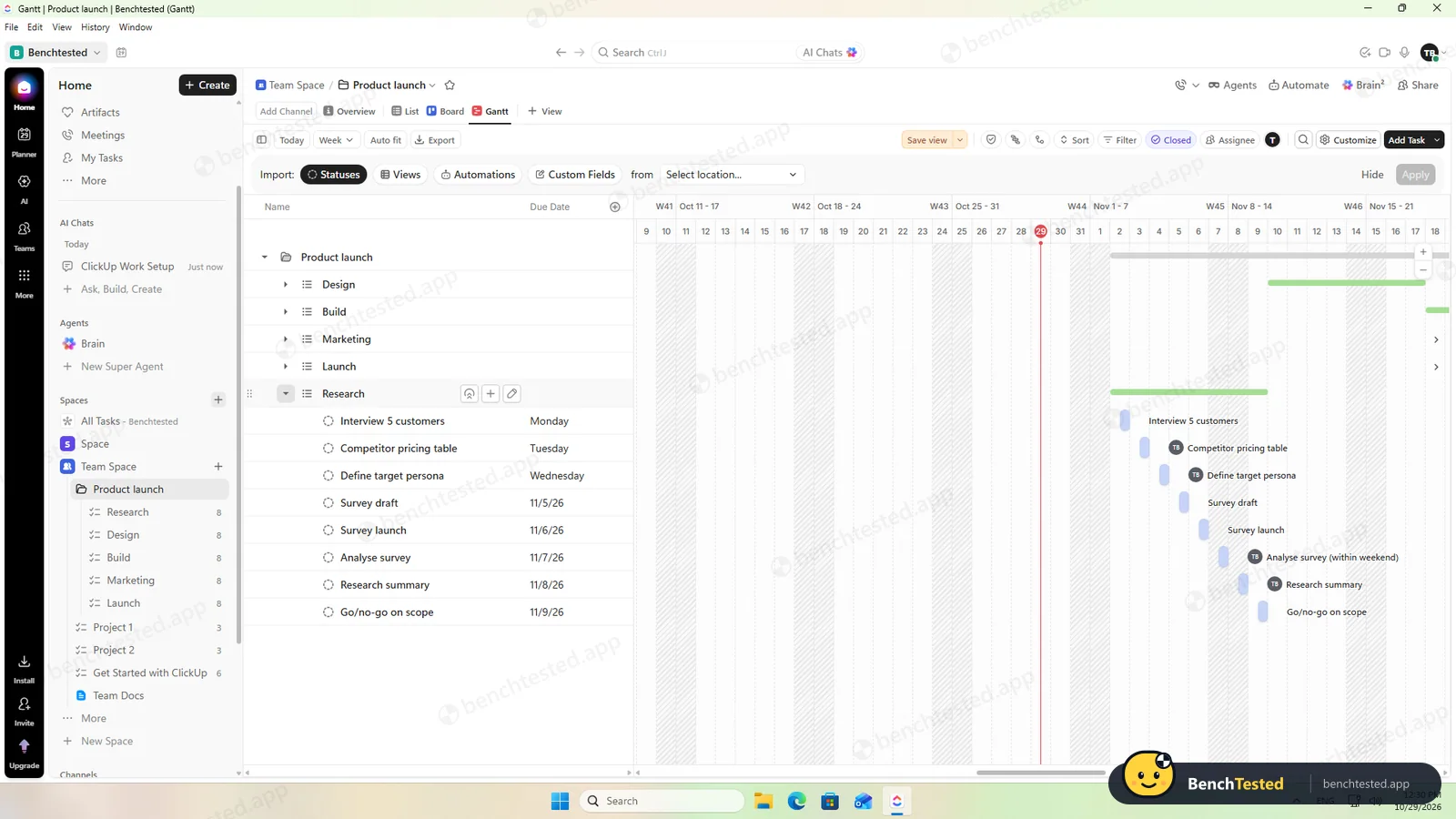
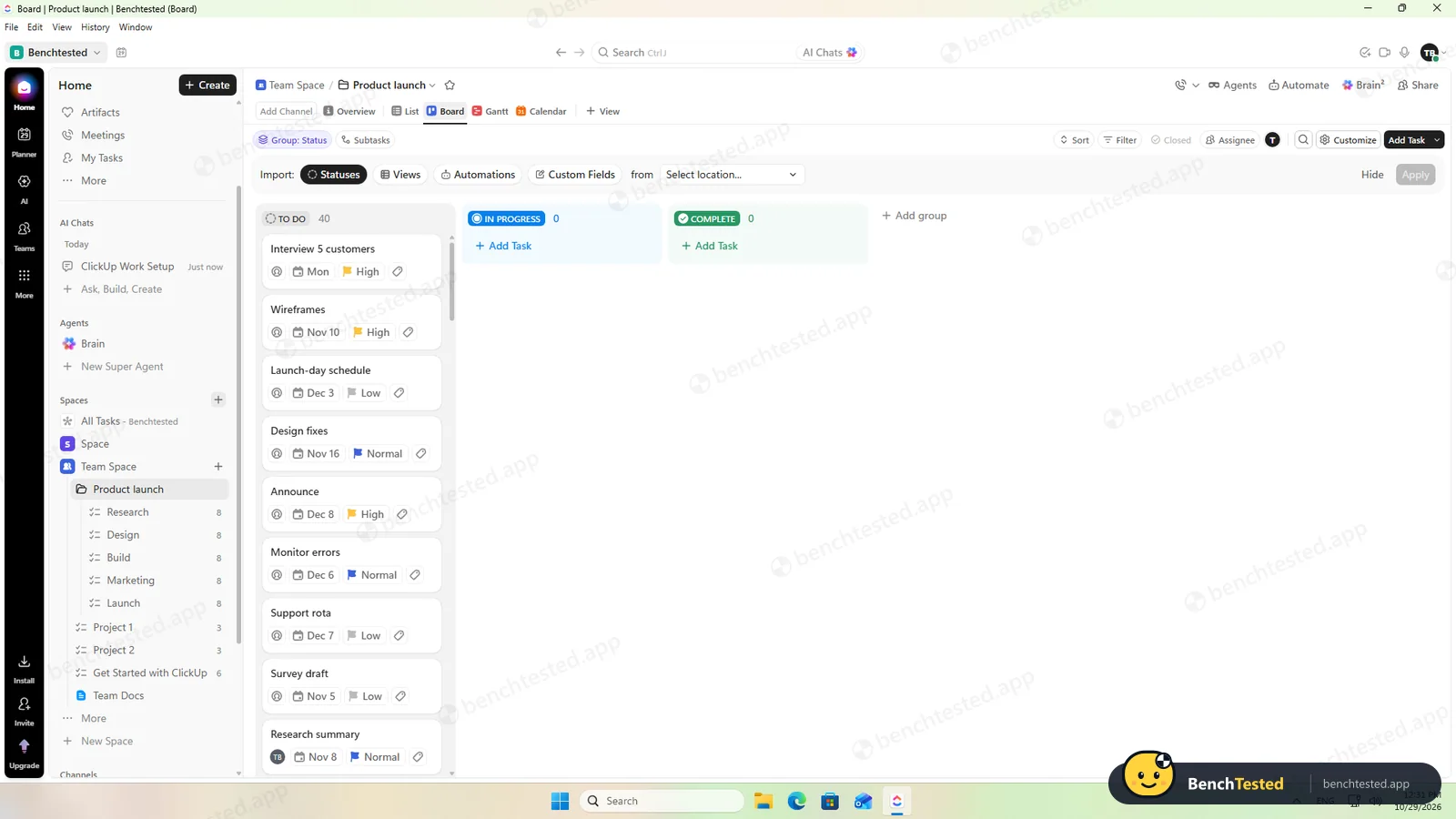
All four views were free with no upgrade prompt; more, such as Timeline, Workload and Mind Map, are in the + View menu.
-
P3 · Rules
Set up a status automation, a dependency and a weekly recurring task.
Pass ≈ 7 min
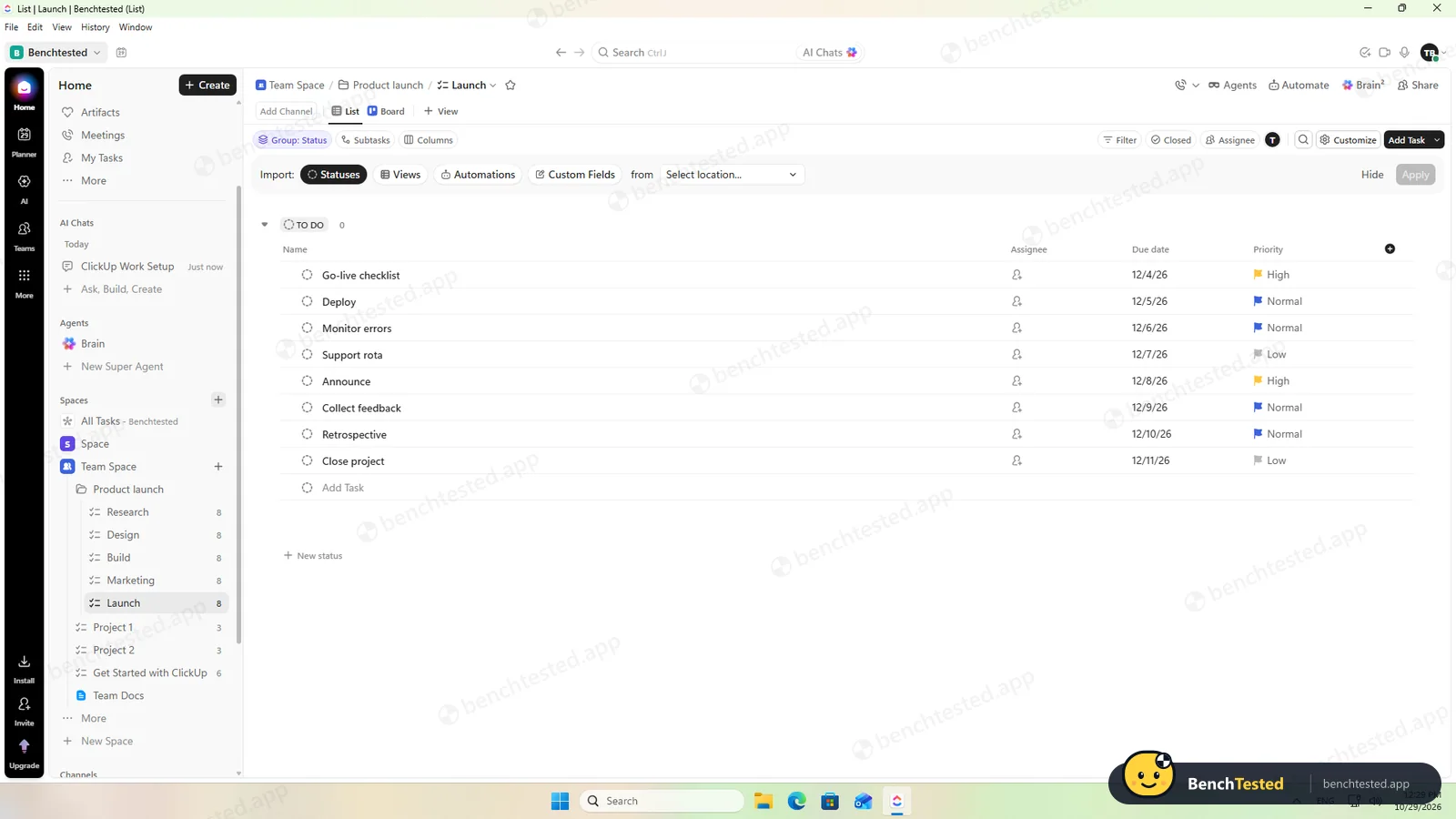
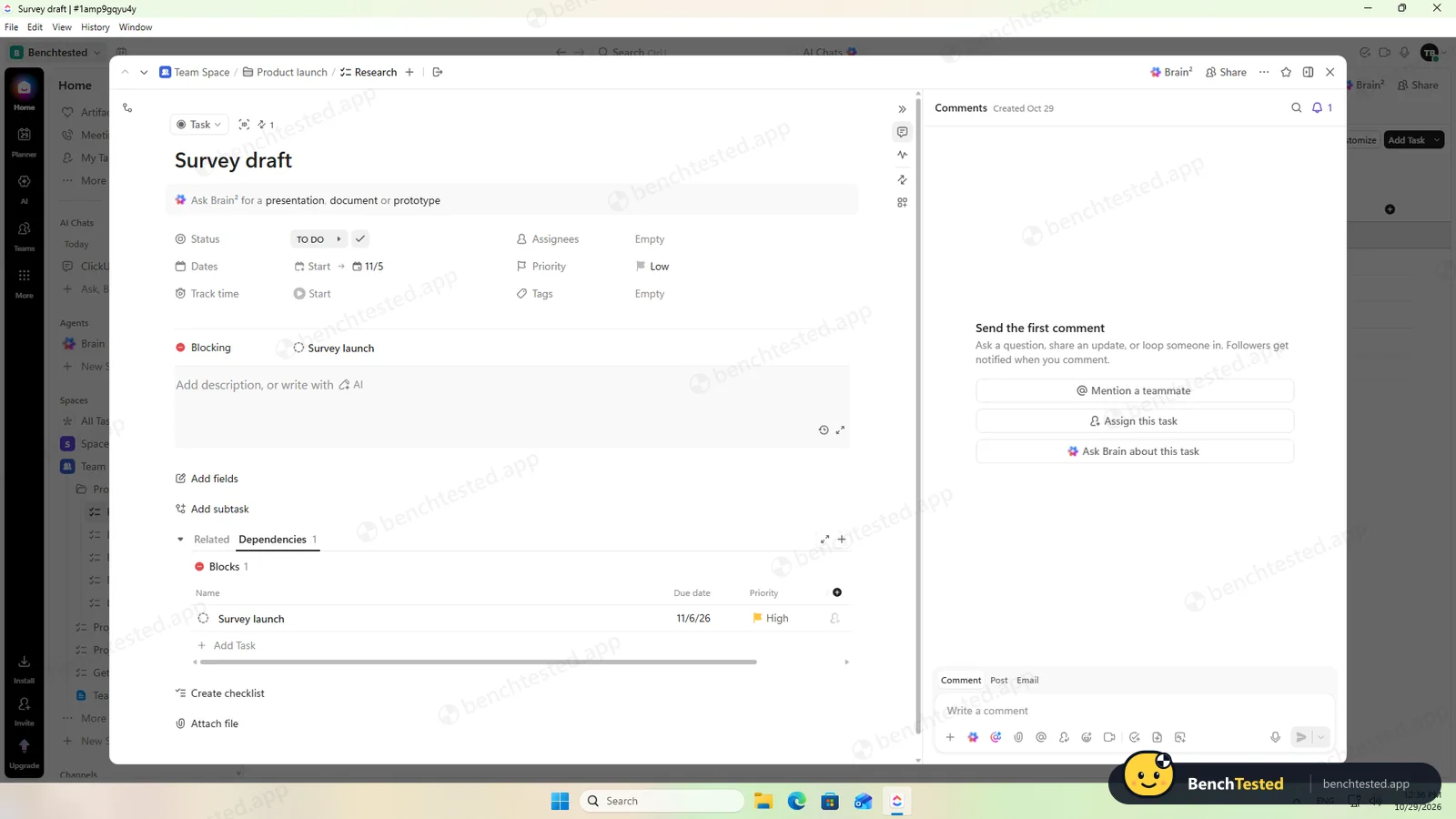
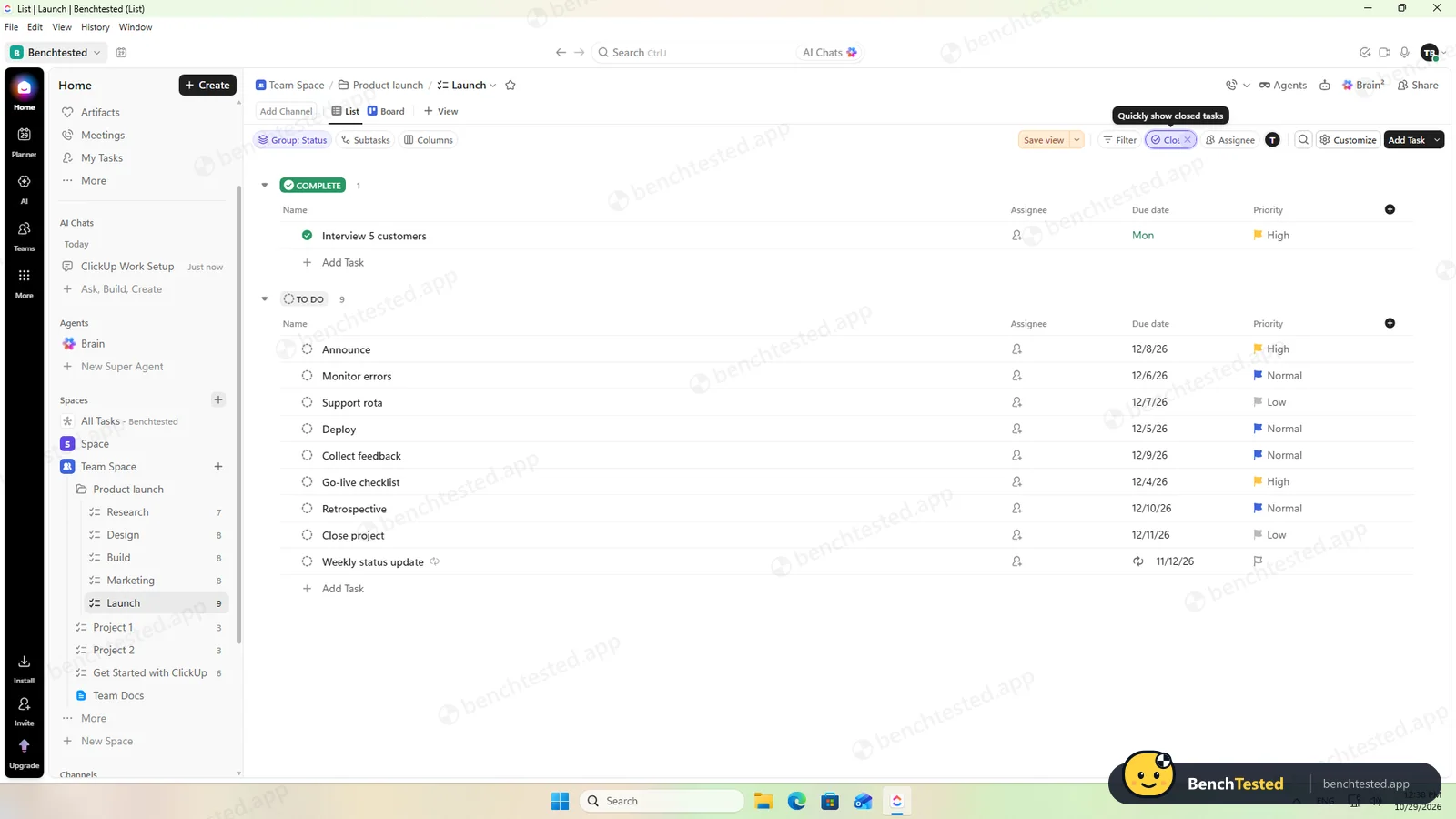
The automation moved a completed task to the Launch list within 15 seconds. The dependency showed as blocking and warning icons. The recurring task came back for next week, but our automation also moved it out of its list: rules can overlap without a warning.
-
P4 · 200-row import
Import a 200-row CSV with statuses, assignees, dates, priorities, tags and special characters.
Partial ≈ 12 min
All 200 rows arrived with titles, dates, priorities, tags and text such as commas, quotes, é and ✓ intact. But none of the seven columns was matched automatically, the “Review” status had to be mapped by hand, and the import wanted to invite the file's email addresses.
-
P5 · Scale
Import 500 rows, then open and scroll a 500-task board.
Pass < 2 min import
The second import reused our mappings. The board opened in 0.7 seconds and scrolled smoothly; memory stayed around 1.9 GB.
-
P6 · Permissions
Invite a second user, check what they can see and change, then restrict them.
Pass ≈ 5 min
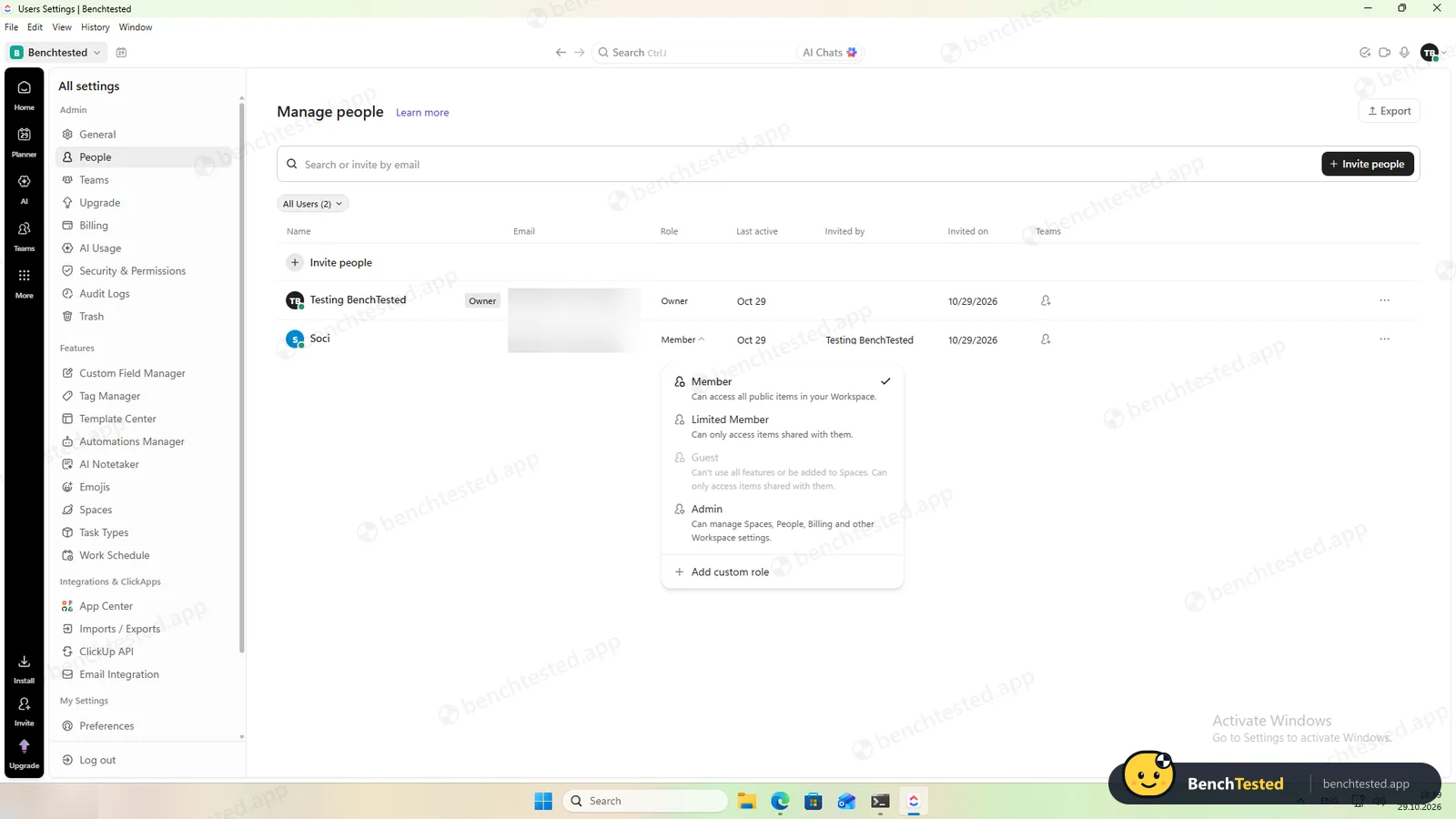
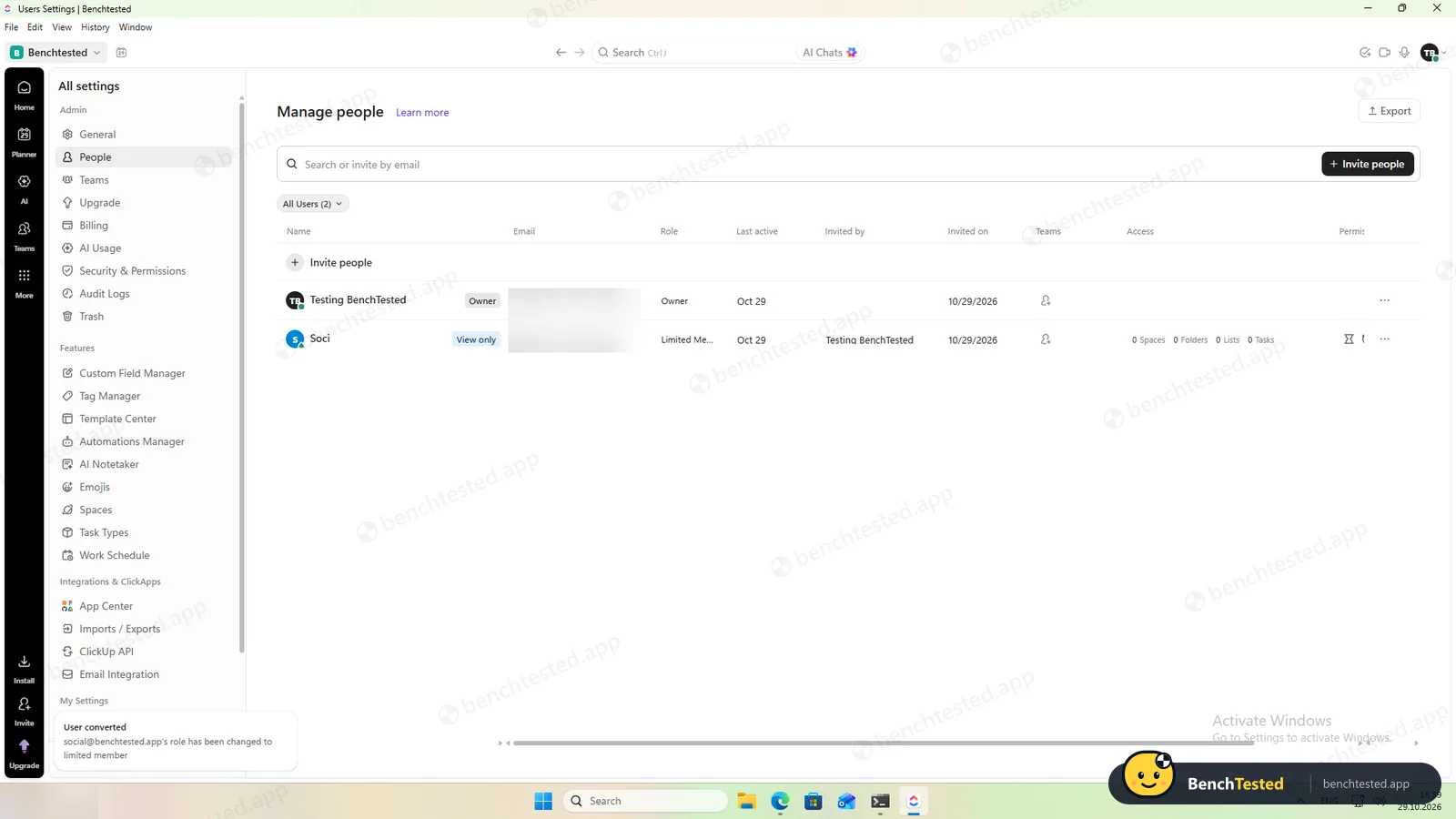
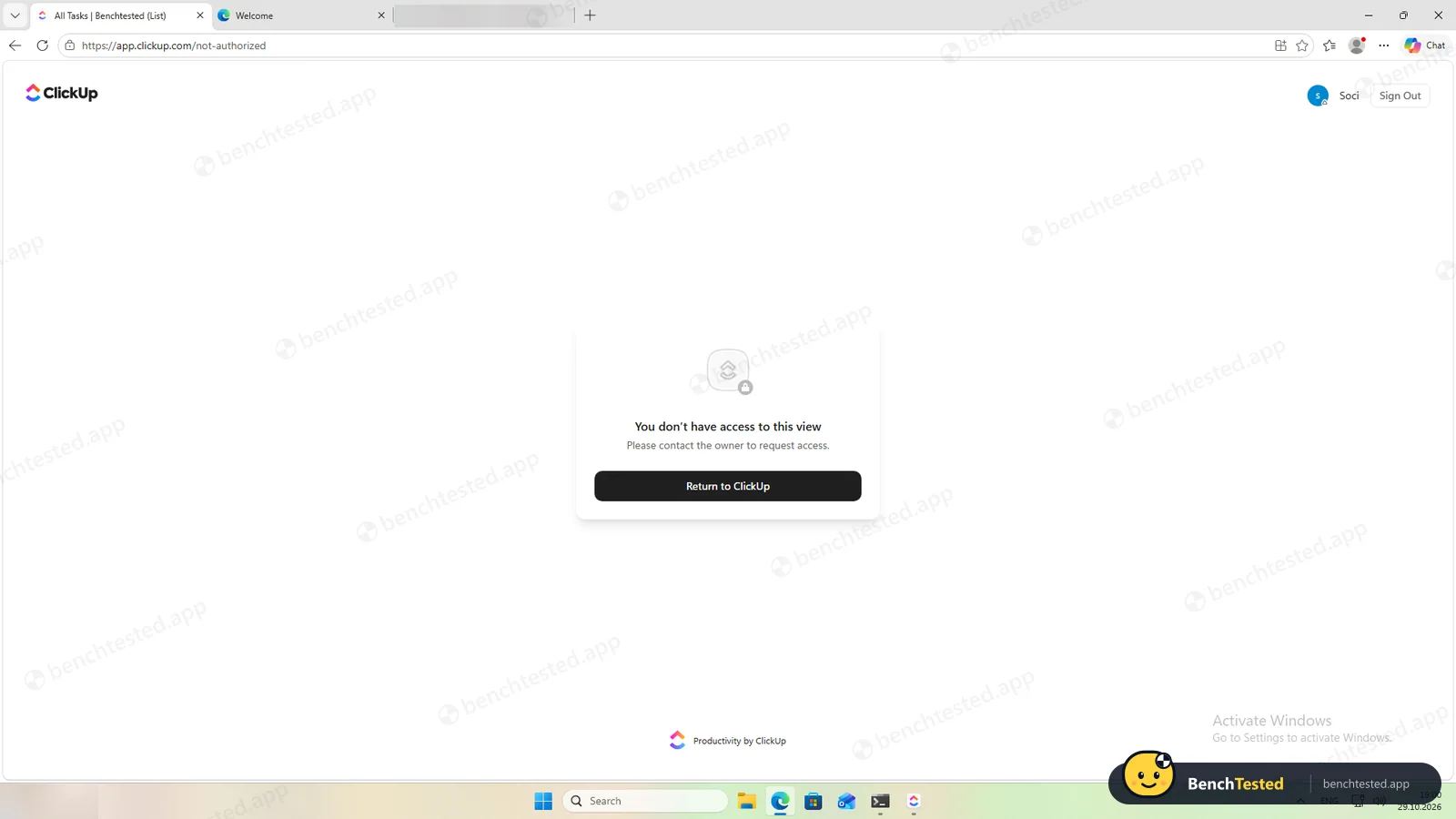
As a Member the second user saw everything and could add tasks. An existing Member cannot be made a Guest; as a Limited Member they lost access as soon as the page reloaded.
-
P7 · AI
Ask the built-in AI to summarise the project, write subtasks for one task and say what is overdue.
Pass ≈ 1–1.5 min each
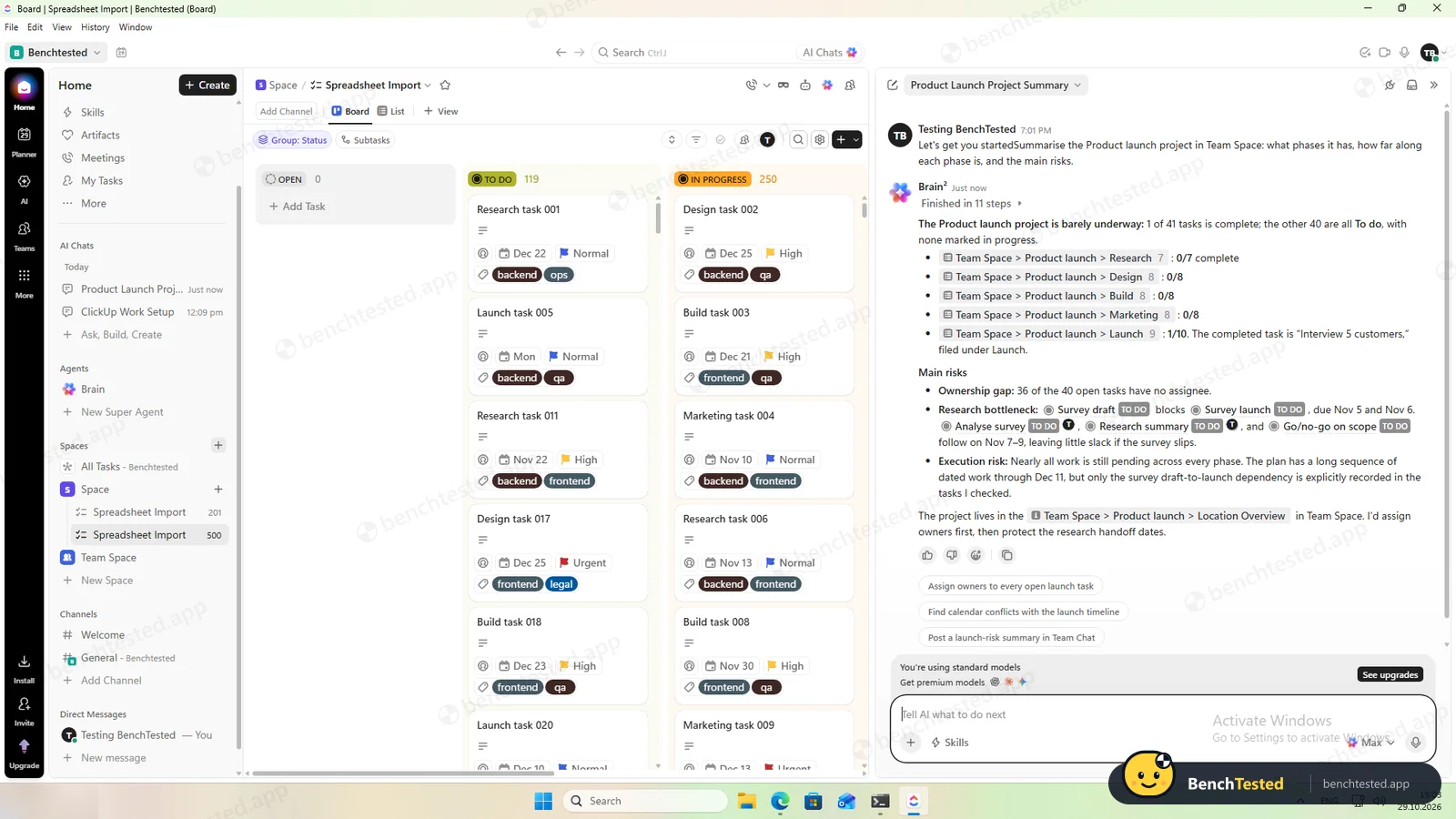
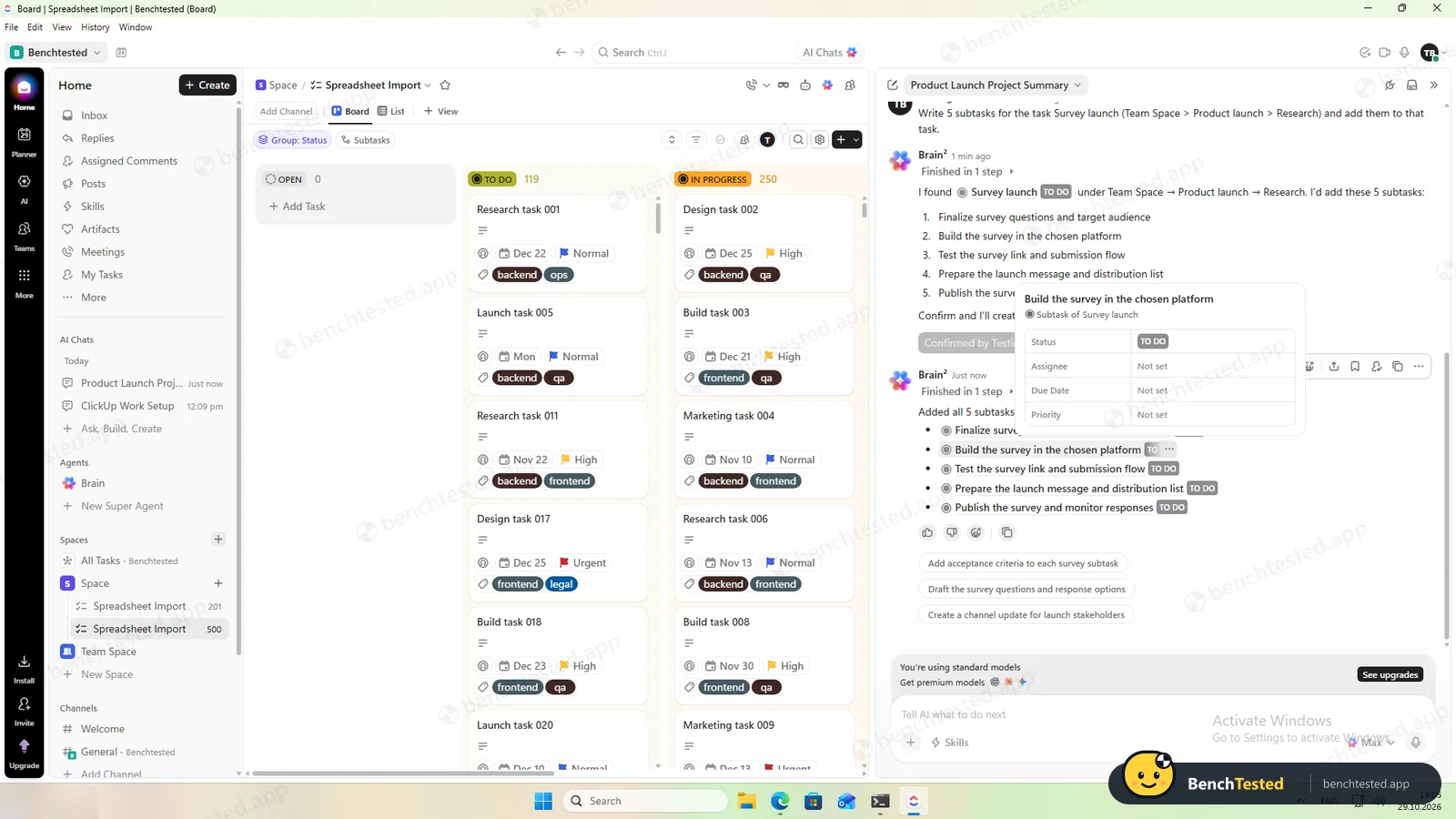
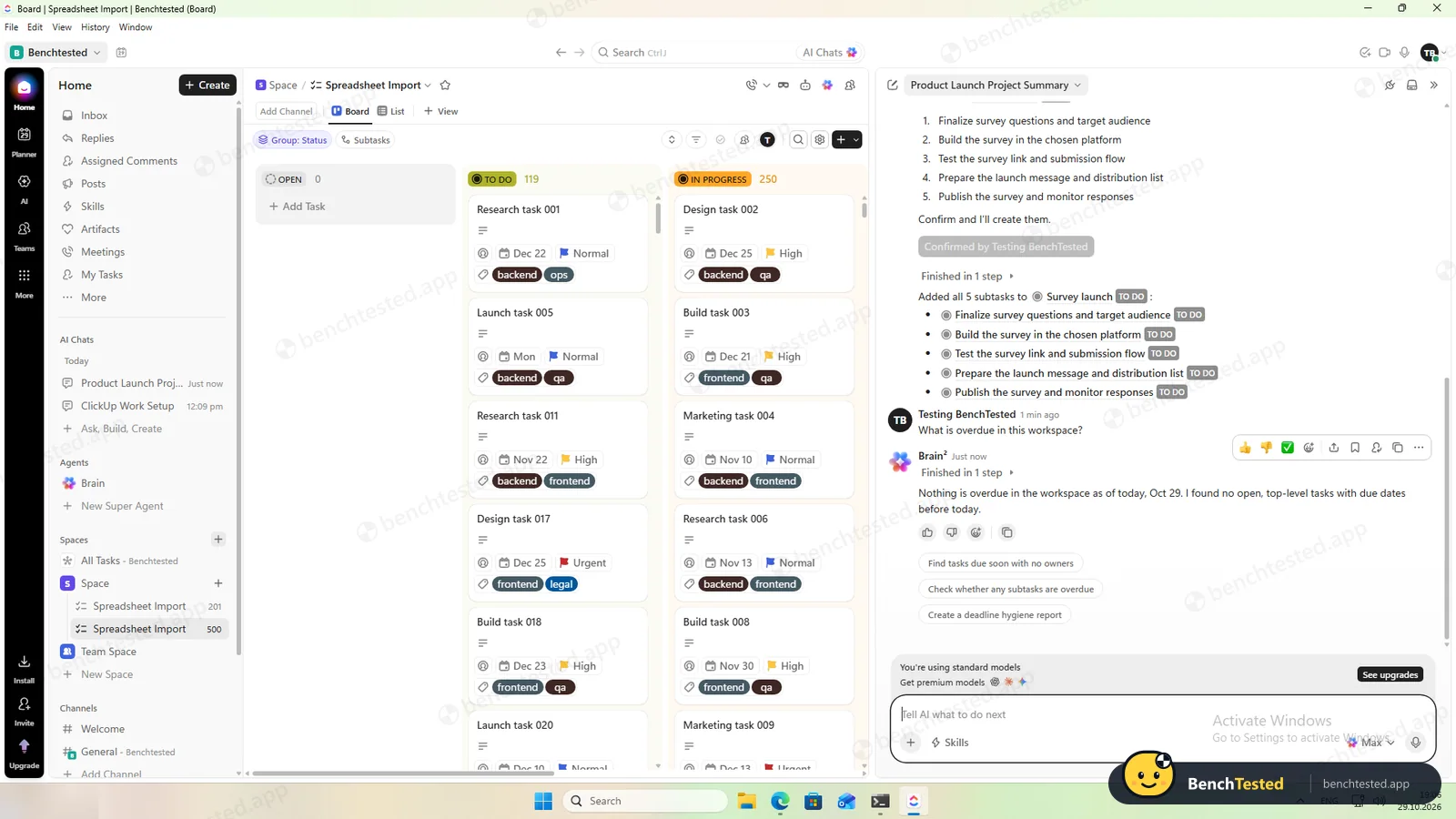
The summary had the right counts and risks, the subtasks were added only after we confirmed, and “nothing is overdue” was correct. Free chat is a one-off trial.
-
P8 · Leave
Export everything to CSV, delete the workspace and uninstall the app.
Partial ≈ 7 min
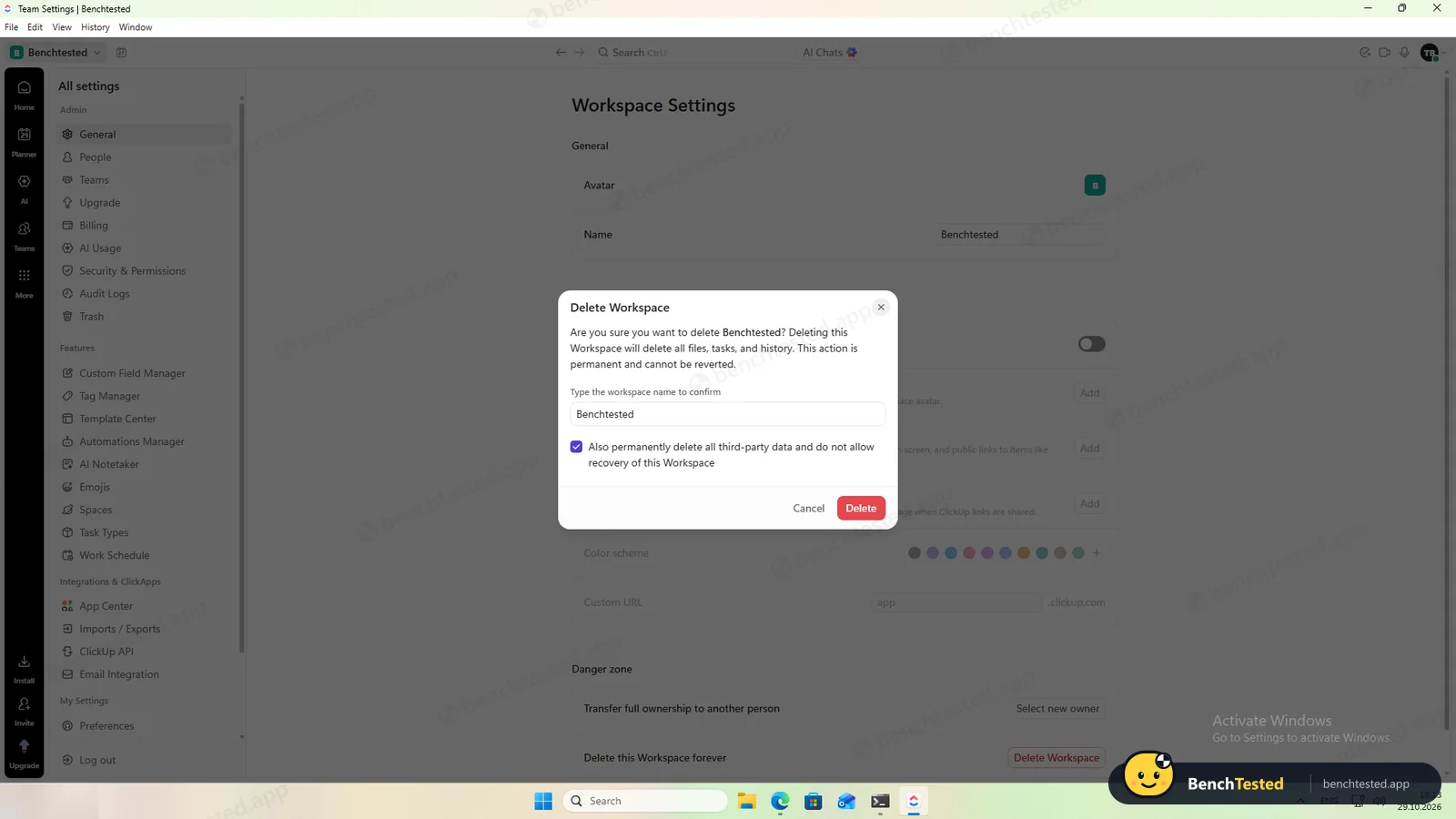
The export had all 771 tasks but no dependencies or recurrence. Deleting the workspace needs its name typed; full deletion is an extra tick box. The uninstaller left about 275 MB and a startup entry behind.
How we tested ClickUp
ClickUp is the first app in our project-management category, so it also set the bar for the test script. We downloaded the Windows desktop app, version 3.5.402, from clickup.com, installed it on a clean Windows 11 virtual machine, created a new account on the free plan and worked through eight steps: build a 40-task project from a written brief, show it in four views, set up rules, import 200 and then 500 rows from a CSV file, invite a second user, use the built-in AI, export everything and leave.
Everything was done in one day, October 29, 2026. We checked every import and AI answer against our own files, timed the app with a stopwatch script and recorded what the installer and uninstaller changed in Windows.
Installation and setup
The 150 MB installer is signed by ClickUp's parent company, Mango Technologies, and asks nothing at all: about 45 seconds after you open it, ClickUp is installed in your user folder and running. It does not need admin rights, but it adds itself to Windows startup without asking, along with a desktop shortcut and a clickup:// link handler. Oddly, the program folder is called “desktop” rather than “ClickUp”.
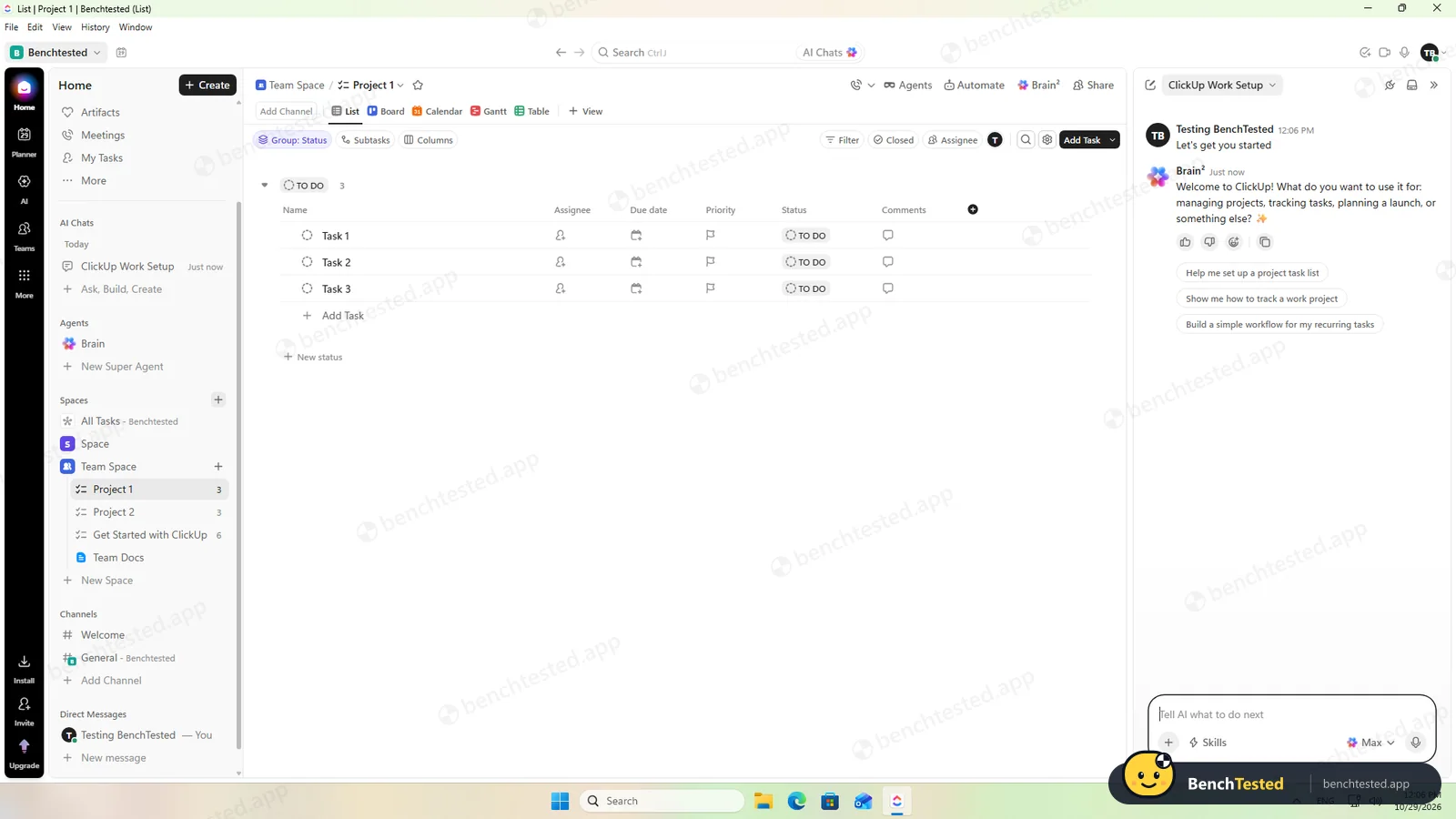
You need an account. Setup then takes about four minutes over nine screens. Two of them push harder than they need to: an optional phone number, which you agree may be used for “informational and promotional” calls and messages, and an invite step that warns, when you skip it, that people who invite others are “4x more successful”. The new workspace comes with sample lists and the AI panel already open.
Building the project
Our brief describes a product launch in five phases of eight tasks. The best shortcut is that pasting a multi-line list into Add Task offers to create one task per line, so all names went in with a single paste per list. Dates can be typed as “Nov 2 2026”, which is quicker than the picker. Setting dates and priorities still took about 200 clicks and keystrokes for the whole project.
Two things got in the way. Every new list opened an AI suggestion for its task type, views and statuses, which we declined each time. And the priority menu has a search box that also matches a “Personal Priorities” entry: typing “Normal” assigned the task to us with a personal priority instead of setting the priority.
Views and rules
List, board, calendar and Gantt views were all available on the free plan without any upgrade prompt, and the + View menu lists more, such as Timeline, Workload and Mind Map. The Gantt chart showed each phase as a bar and each task on its day.
We then set up three rules. An automation moving completed Research tasks to the Launch list fired within 15 seconds; the free plan allows 100 automation actions a month and 5 active rules. A dependency showed a blocking icon on one task and a warning on the other. A weekly recurring task reappeared for the next week when completed, but our automation also moved it to the Launch list. ClickUp gave no warning that the two rules overlap.
Importing 200 and 500 rows
Our 200-row CSV file has columns called Title, Status, Assignee, Due date, Priority, Tags and Description, with commas, quotes, an accented letter and a check mark in the text. ClickUp's import wizard matched none of the seven columns automatically, so we mapped each one ourselves, and two of the four status values, including “Review”, had to be assigned by hand. The wizard also pre-filled the file's email addresses to be invited to the workspace; we cleared them.
After that it went well: all 200 rows arrived in about two minutes with dates, priorities, tags and every special character intact. For the 500-row file ClickUp remembered all our choices, and the import finished in under two minutes. The 500-task board then opened in 0.7 seconds and scrolled smoothly.
Speed and memory
Working in the app is quick, but starting it is not. The window appears in under two seconds, then shows a loading screen; our last list was fully drawn after about 14 seconds. With our lists open the app used 1.7 to 2.2 GB of memory across seven to ten processes, a lot for a task manager.
Sharing and permissions
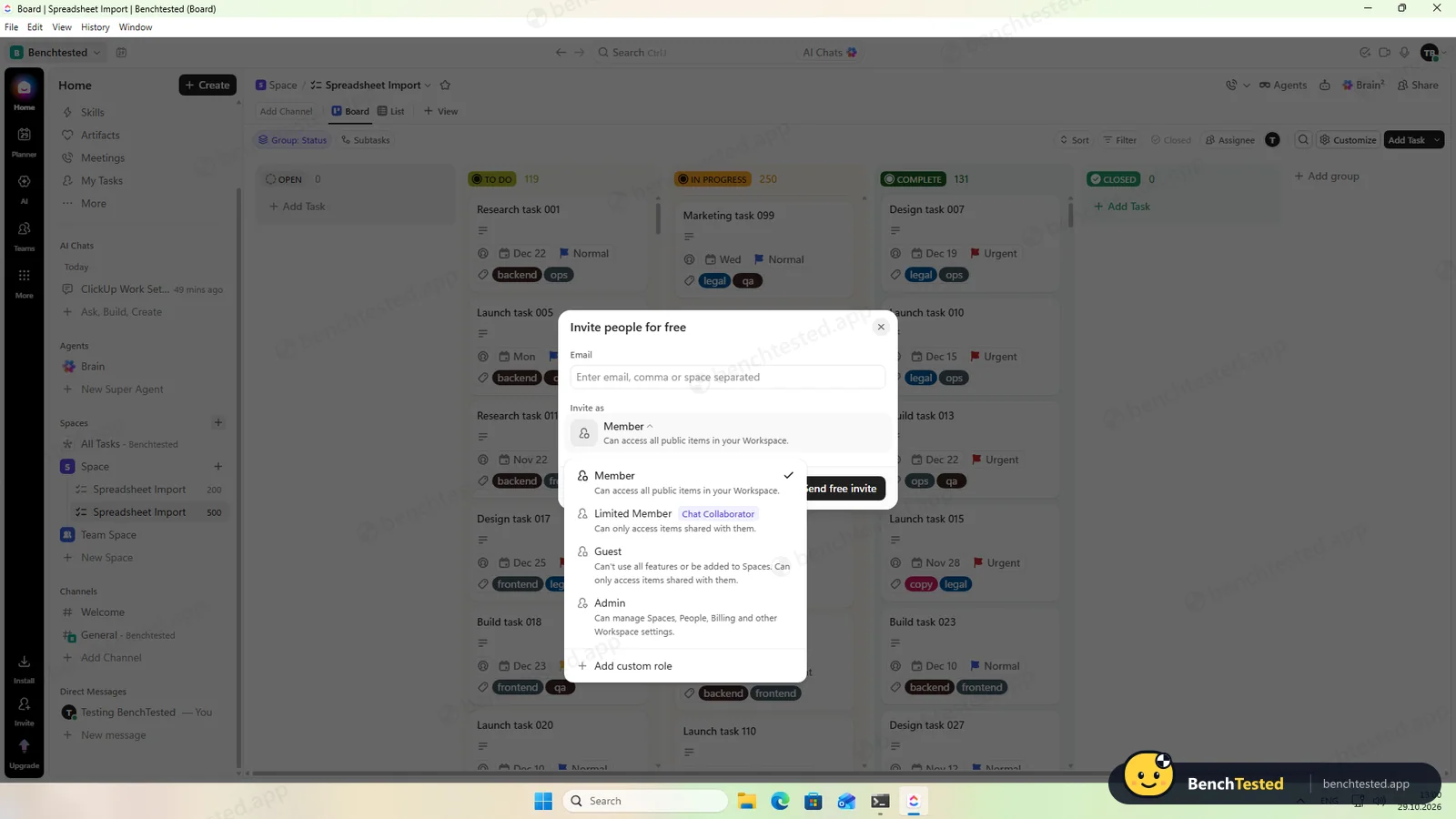
We invited a second account as a Member. It could see every public list and add tasks, and its menu lacked the owner's People and Upgrade entries. You cannot turn an existing Member into a Guest: the option is greyed out, so a Guest has to be invited as one from the start. We made the user a Limited Member instead; ClickUp marked them “View only” with access to nothing, and the moment their page reloaded they saw “You don't have access to this view”.
ClickUp's AI
Brain², ClickUp's AI, is built in. Asked to summarise our launch project, it took about a minute and a half and got everything right: 1 of 41 tasks complete, the counts for each phase, 36 tasks without an owner and the dependency we had set up, which it called the main risk. Asked to write five subtasks, it listed them and waited for us to click “Create 5 subtasks” before adding them, under the right task. Asked what was overdue, it correctly said nothing was, since our first due date was four days away.
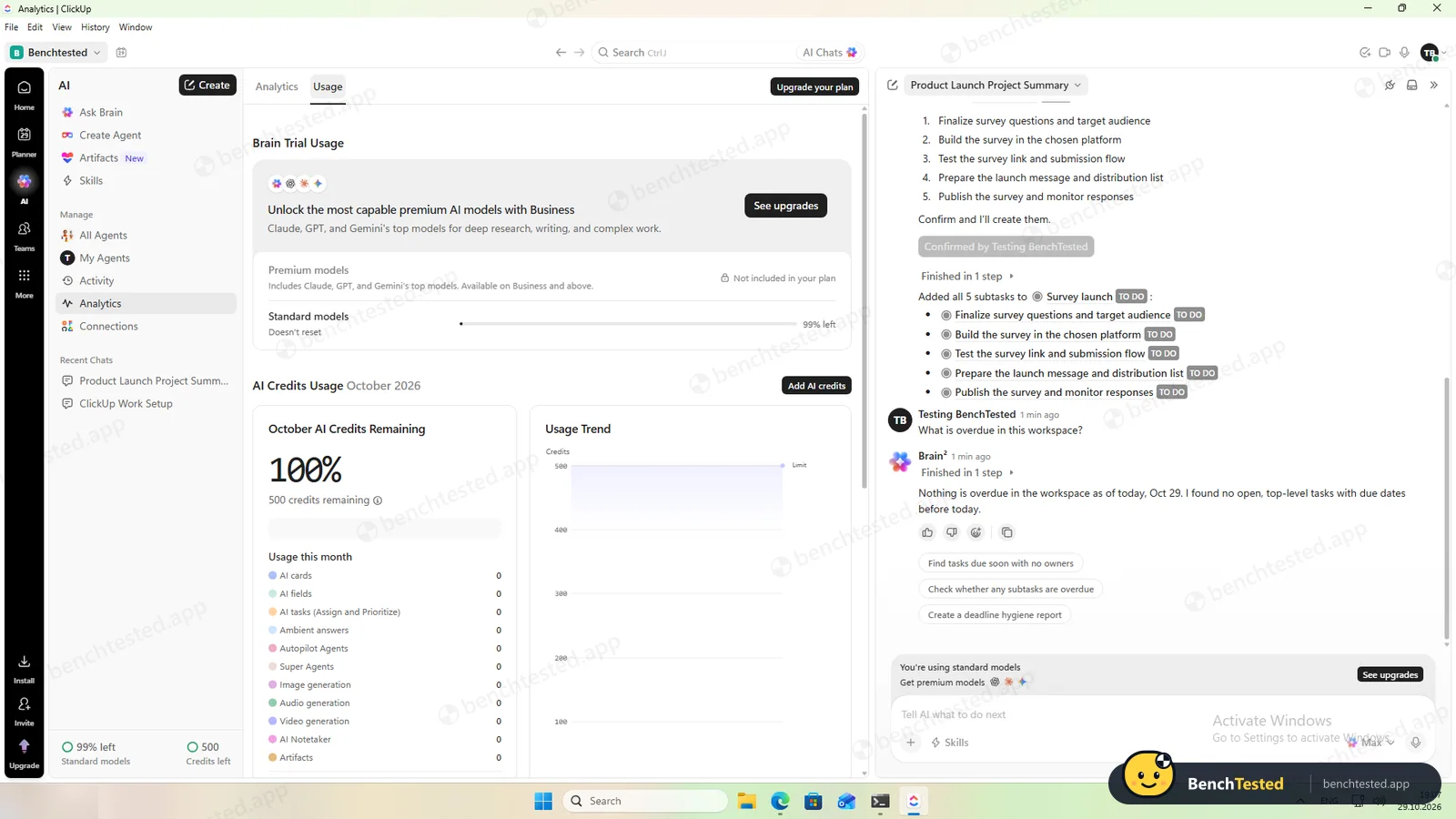
On the free plan the AI chat runs on a trial allowance that, according to ClickUp's usage page, does not reset; our four chats used about 1 percent of it. Separately there are 500 AI credits a month for other AI features, which our chats did not touch. The strongest models, from Anthropic, OpenAI and Google, need the Business plan.
Leaving ClickUp
The workspace export is quick: in under a minute we downloaded one CSV file with all 771 tasks, including the 24 sample tasks ClickUp had added, with descriptions, statuses, dates, tags, comments and subtask links. What it leaves out matters for a move to another tool: there is no column for dependencies or recurrence, and automations and views are not exported.
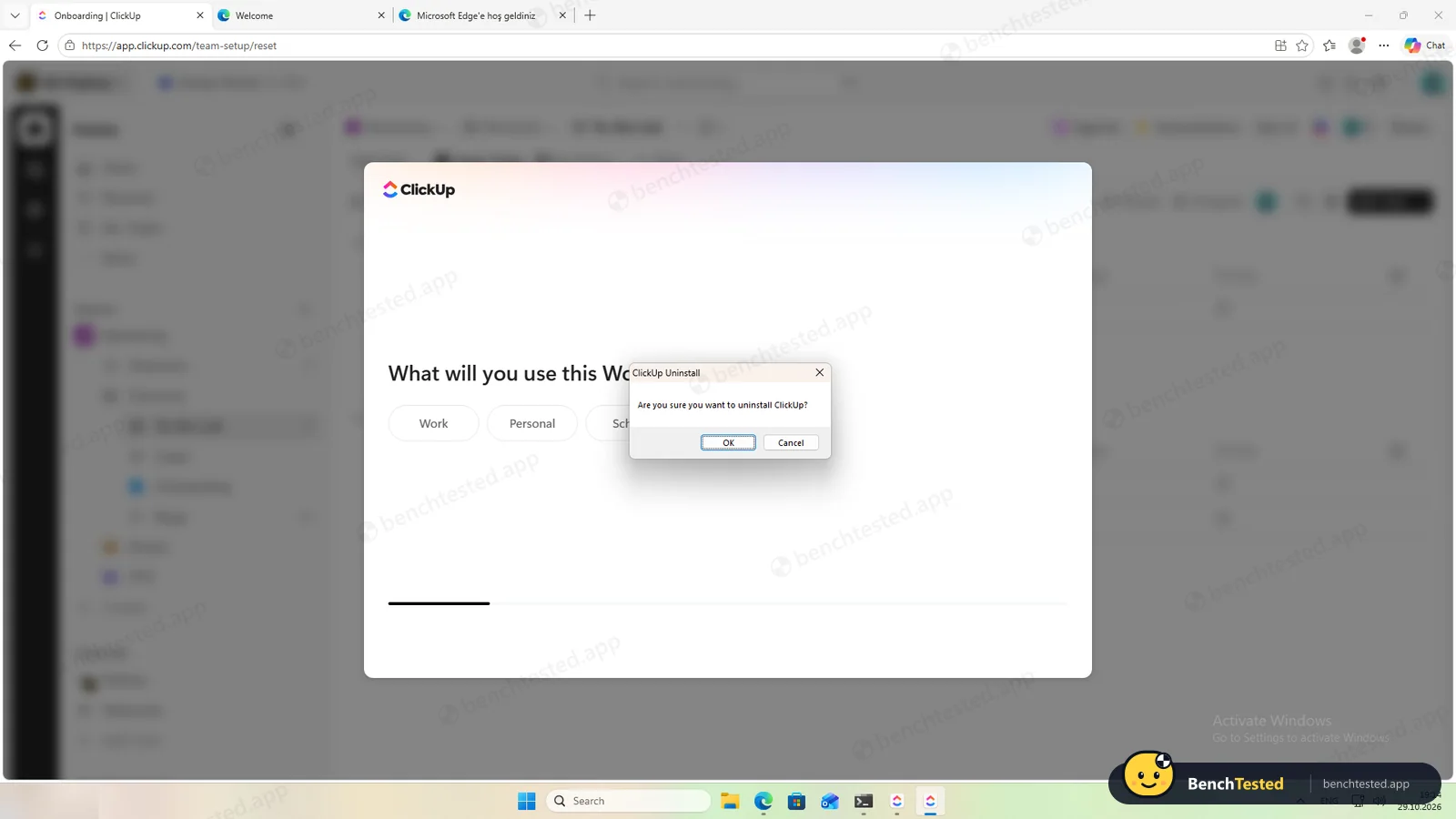
Deleting the workspace means typing its name. A second tick box, off by default, makes the deletion permanent; without it ClickUp keeps the option to recover the workspace. Our account itself stayed. The uninstaller asks once, then asks again to close the running app, and removes the program in seconds. It left about 275 MB behind: a 133 MB profile folder, a 143 MB updater cache, the clickup:// link handler and the startup entry, which now points at a program that no longer exists.
What we have not tested yet
We did not test integrations with apps such as Slack or Google Drive, imports from other tools, docs, whiteboards, chat, time tracking, the mobile and Mac apps or the paid plans. We did not test ClickUp offline, and we ran each step once.
ClickUp Screenshots
Taken during our own test run on a clean Windows 11 machine.
What we checked
Every item in our project management tool test plan and how ClickUp did. Scan for the ones you can't live without.
Installation
- Pass Download size150 MB
- Pass Signed installerClickUp (Mango Technologies, Inc.), EV certificate
- Pass Admin rightsnot needed
- Fail Asks before running at startupadded to Windows startup without asking
First use
- Pass Sign-up without a cardaccount required, no card
- Partial Time to a usable workspaceabout 4 minutes of onboarding
Core tasks
- Pass Build a 40-task projectbulk paste helps
- Pass List, board, calendar and Gantt on the free plan
- Pass Status automation100 actions a month free
- Pass Task dependency
- Pass Recurring taskoverlapping rules are not flagged
- Pass CSV import keeps the data200 / 200 rows
- Fail CSV import maps columns itself0 of 7
- Pass Permissions and rolesGuest only for new invites
- Pass AI summary and answersaccurate in our test
- Pass AI asks before changing data
Performance
- Pass Large board (500 tasks)0.7 s
- Fail Cold startabout 14 s to usable
- Partial Memory use1.7–2.2 GB
Privacy and security
- Partial No pressure to share contactsphone request and CSV invites are optional but pushed
- Pass Access removed immediately
Integrations
- Pass Import from other toolsCSV tested; Asana, Jira, Trello and others listed
- N/A Connected appsnot tested
Offline and sync
- N/A Behaviour without internet
Pricing traps
- Partial Free plan limits60 MB storage, 100 automation actions, AI chat trial
Cancel and uninstall
- Partial Complete exportall tasks, but no dependencies or recurrence
- Pass Delete the workspacefull deletion is an extra tick box
- Fail Clean uninstallabout 275 MB and a startup entry left
Test Results
- Ease of use6.5
Bulk paste and typed dates make building a project quick, but the setup is busy, the priority menu is easy to misuse and the CSV import makes you map every column yourself.
- Views & flexibility9.0
List, board, calendar and Gantt are all free, with many more views a click away.
- Speed6.5
Imports and a 500-task board were fast, but the app takes about 14 seconds to become usable and holds up to 2 GB of memory.
- Automation & AI7.5
The automation, dependency and recurring task all worked, and the AI was accurate and asked first. Free limits are 100 automation actions a month and a non-resetting AI chat trial.
- Integrations7.0
Importers for a dozen tools and a complete CSV export; we did not test app integrations such as Slack or Google Drive.
- Value for money8.0
The free plan covered our whole test, with unlimited tasks and members. Paid plans start at $9 per user a month billed yearly.
Every project management tool runs the same script. How we test →
Key Features
Tasks and viewsTested by us
Manage tasks with custom fields and switch between list, board, Gantt, calendar and other views.
All four views we needed were free; bulk paste created one task per line.
AutomationsTested by us
Rules that act on triggers such as a status change.
Ours fired within 15 seconds; Free allows 100 actions a month and 5 rules.
Dependencies and recurring tasksTested by us
Tasks can block one another and repeat on a schedule.
Both worked; overlapping rules are not flagged.
Import and exportTested by us
Import from spreadsheets and other tools; export the workspace to CSV.
200 and 500 rows imported; the export had all 771 tasks but no dependencies.
ClickUp BrainTested by us
AI that draws on workspace content to answer questions and take actions, with monthly AI credit allowances by plan.
Accurate summary and answers, and it asked before adding subtasks.
Roles and permissionsTested by us
Owner, Admin, Member, Limited Member, Guest and custom roles.
Access was removed immediately; Members cannot be turned into Guests.
Additional Features
Docs, chat and whiteboardsVendor-stated
Write documents, message teammates and sketch ideas inside the same workspace as the tasks.
Sprints and time trackingVendor-stated
Plan sprints, track time against tasks and automate routine updates.
ClickUp at a glance
- Version tested
- Windows desktop app 3.5.402 (October 29, 2026)
- Platforms
- Web, Windows, macOS, Linux, iOS and Android
- Installer
- 150 MB; per-user install, no admin rights
- Account
- Required
- Free plan
- Unlimited tasks and members, 60 MB storage
- Importers
- Spreadsheets, documents, Asana, Basecamp, Confluence, Jira, Monday, Notion, Slack, Todoist, Trello and Wrike
Is ClickUp secure?
We did not review ClickUp's privacy policy or security certifications for this test. Below are only the things we saw on our test PC and in the app.
-
Starts with WindowsTested by us
The installer adds ClickUp to Windows startup without asking. It adds no services or scheduled tasks and only listens on the PC itself.
-
Contacts are pushed, not requiredTested by us
Setup asks for a phone number for promotional calls and messages, and the CSV import pre-fills the file's email addresses as invitations. Both can be skipped.
-
Full deletion is opt-inTested by us
Deleting a workspace keeps it recoverable unless you tick a separate box to delete it and its third-party data permanently.
-
Left after uninstallingTested by us
A 133 MB profile folder, a 143 MB updater cache, the clickup:// link handler and a startup entry pointing at the removed program.
Pricing
Free plan
Yes
Paid plans from
$9 / user / month, billed yearly
-
Free Forever
$0
Unlimited tasks and members, 60 MB storage, 5 Spaces, 100 automation actions a month, an AI trial with 500 credits. Our whole test fitted in it.
-
Core
$9/user/mo
Billed yearly; the pricing page shows it reduced from $12.
-
Business
$17/user/mo
Billed yearly; reduced from $25. Premium AI models from Anthropic, OpenAI and Google start here.
-
Enterprise
Custom
From ClickUp's pricing page, checked Oct 29, 2026.
Who makes ClickUp?
- Company
- ClickUp (Mango Technologies, Inc.)
- Headquarters
- San Diego, California, USA
- Founded
- 2017
- Founders
- Zeb Evans, Alex Yurkowski
- Funding
- $400 million Series C in October 2021 at a reported $4 billion valuation.
ClickUp timeline
- 2017Founded by Zeb Evans and Alex Yurkowski.
- Oct 2021Raises $400 million in a Series C round.
- Oct 28, 2026Windows app 3.5.402 published; we tested it the next day.
FAQ
Is ClickUp free?
Yes. Free Forever has unlimited tasks and members and every view we tested, with limits of 60 MB storage, 5 Spaces and 100 automation actions a month. Our whole test fitted in it. Paid plans start at $9 per user a month billed yearly.
Which platforms does ClickUp support?
ClickUp runs in the browser and has desktop apps for Windows, macOS and Linux, plus mobile apps for iOS and Android. We tested the Windows app.
Is the ClickUp desktop app fast?
Once running, yes: a 500-task board opened in 0.7 seconds. Starting it took about 14 seconds before our list was usable, and it used 1.7 to 2.2 GB of memory.
Can ClickUp import a CSV file?
Yes. All 200 and then 500 rows of our test file arrived intact, but ClickUp did not match any of the seven columns automatically, so you map them yourself the first time.
Is ClickUp's AI free?
There is a free AI chat trial on standard models that does not reset, plus 500 credits a month for other AI features. In our test the AI was accurate and asked before adding anything.
Can I export everything from ClickUp?
You can export all tasks to one CSV file in under a minute, with comments and subtasks. Dependencies, recurrence, automations and views are not included.
Does ClickUp leave anything behind after uninstalling?
Yes. About 275 MB of profile and updater files, the clickup:// link handler and a startup entry pointing at the removed app stayed on our test PC.
Final Verdict
ClickUp did everything our test asked on the free plan, and some of it impressively: four free views, rules that work, a large import that kept every character, a fast 500-task board, and an AI that was right and asked before acting. You can also leave with all your tasks in a single CSV file.
The costs are weight and friction. The Windows app takes about 14 seconds to start and up to 2 GB of memory, it starts with Windows without asking and leaves files and a broken startup entry behind, and the CSV import makes you do the matching yourself.
Our advice: if your team wants one free tool with lists, boards, Gantt charts and automation, ClickUp is a strong choice. If you only need a simple task list, it is more app than you need.